Creative briefs
Last updated: October 7, 2026
A creative brief is a page of guidance you share with creators: your talking points, the hooks that already work, do's and don'ts, and videos to learn from. We build it with you and give it a public link that creators can open on any device, without signing in.
Why use it
You want creators to know your talking points and see the videos that already work, without writing it all out in every message. A brief puts that on one page with one link. A Dynamic Brief also keeps up with your latest top videos.
Where to find it
Go to Affiliate CRM > Creative Briefs. Create a brief offers the three kinds of brief, and your briefs are listed below it. Click a brief to open its page.
Who can use it
Creative Briefs is on every plan. Starter, Pro, and Business include 10 new briefs per billing cycle, and Growth and Autopilot have no limit. See Plans and limits, which also explains when Starter and Pro have no limit.
How to create a brief
There are three kinds of brief, and they work differently. Pick the one that matches how much control you want:
| Dynamic Brief | Build Your Own | Upload Your Own | |
|---|---|---|---|
| What goes in it | Our AI fills in hooks, selling points, and do's and don'ts from each product's top-performing videos, and adds its trending videos | An AI-written draft for one product, with hooks, selling points, and example videos, which you then edit | A finished JPG or PNG you designed elsewhere |
| Products | One or more, each with its own sections and videos | One | None |
| Clickable links | Yes | Yes | No: an image can't carry links |
| Videos | Trending videos added for you, plus up to 5 Brand Picks you pin per product | Links to example videos in the draft, plus any you add | Only what's printed in the image |
| Banner, fonts, and colors | Set for you | You choose them | As designed |
| After you publish | Sections you haven't edited keep up with your latest videos | Stays as published until you edit it | Stays as uploaded |
| Type in the list | Dynamic | Markdown | Upload |
Dynamic Brief
- Click Dynamic Brief.
- Enter a Brief Title, and check the Public URL we make from it.
- Select one or more products, and click Next: Preview.
- For each product, check Winning Hooks, Selling Points, Do's & Don'ts, and Videos. You can edit any section, remove a trending video, add Brand Picks by pasting a TikTok video link, or switch off Show trending videos to show only your picks.
- Click Publish Brief.
Build Your Own
- Click Build Your Own.
- Enter a Creative Brief Name, which the URL is made from, and choose the product.
- If you like, describe the style you want in Creative Brief Prompt, and tick General TikTok Tips.
- Click Generate & Customize. You get an AI-written draft for the product.
- Edit the draft. Under Customize, add a Banner Image (JPG or PNG), and pick Fonts and a Color Palette.
- To see the page as creators will see it, open Full Preview.
- Click Publish Brief.
Until you publish, your draft is kept in this browser, and Build Your Own reopens it.
Upload Your Own
- Click Upload Your Own and enter a Creative Brief Name, which the URL is made from.
- Upload your design as a JPG or PNG, up to 20 MB.
- Click Upload Creative Brief.
Once a brief is published, Your brief is now live lets you copy its link, download it as an image (not a Dynamic Brief), and send it to creators.
How to send a brief to creators
To share the link yourself, click Copy Public Link and paste it anywhere.
From an outreach agent
- Click Send to creators in the brief's ⋯ menu, or Start right after you publish. A new Message + Creative Brief outreach agent opens, with the brief in its message.
- Check the agent. Where it can, we aim it at a segment of creators whose sample of the brief's product has shipped.
- Start the agent. See Outreach agents.
Any Message + Creative Brief agent puts the brief's link in your message. For a Build Your Own or Upload Your Own brief, the first message also carries an image of the brief. A Dynamic Brief goes as a link only.
In a sequence
The Message + creative brief step sends a brief as one step of a sequence. See Sequences (Beta).
At the right moment, with a CRM agent
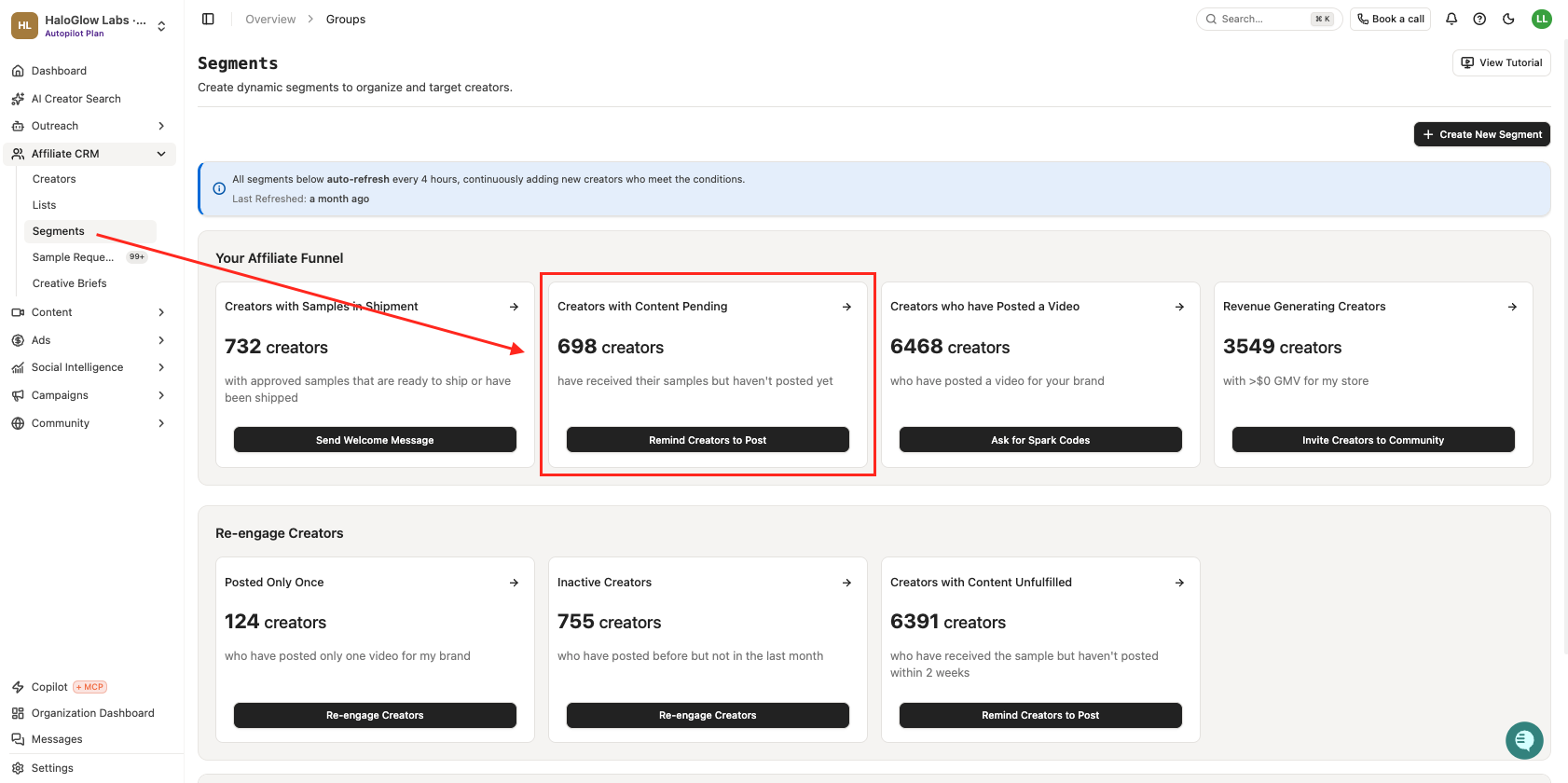
Point a CRM agent at a segment, so each creator gets the brief when they reach it. For example, to send it to creators who have their sample but haven't posted yet:
- Go to Affiliate CRM > Segments.
- In the Creators with Content Pending section, click Remind Creators to Post. It starts a new agent.
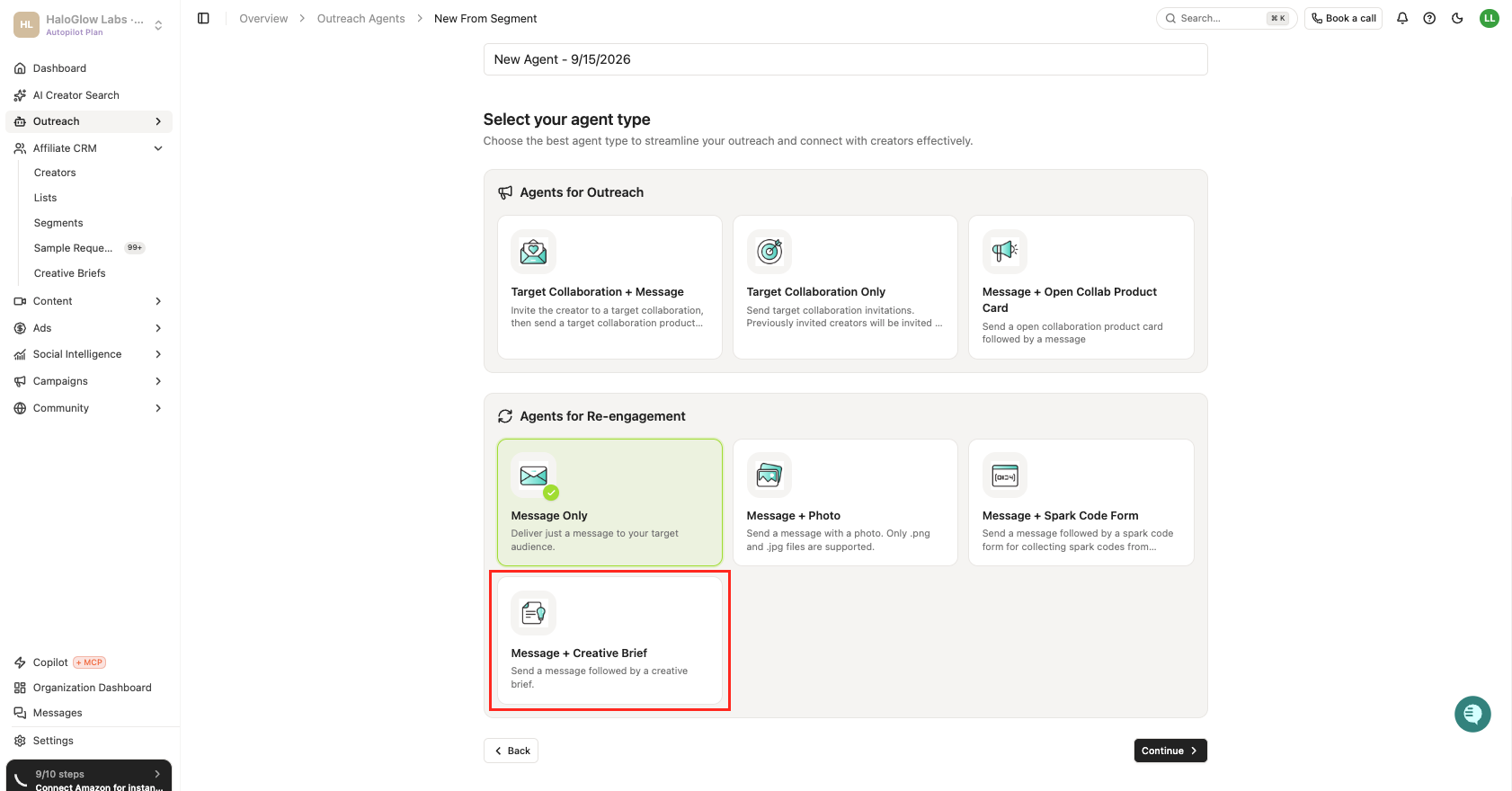
- Choose Message + Creative Brief as its type.
The first screenshot below shows the Creators with Content Pending section on the Segments page. The second shows Message + Creative Brief in the list of agent types.
How to edit a brief
- In the brief's ⋯ menu, click Edit.
- Make your changes.
- Click Publish Brief for a Build Your Own brief, or Save Changes for a Dynamic Brief.
Creators see the change the next time they open the link. An uploaded brief can't be edited, so upload a new one instead.
Manage your briefs
Your briefs are listed with their Type, Link, Videos, Views, and Created date.
The ⋯ menu on a brief has Rename, Edit, Duplicate, Download, Copy Public Link, Send to creators, and Delete. Not every kind of brief has all of them.
Rules and limits
- The link. A brief's page is at
https://www.tiktokshoppartner.us/brief/followed by its URL. Anyone with the link can open it without signing in. Each URL belongs to one brief, and it can't be changed once the brief is created. - Build Your Own and uploaded briefs don't change on their own. Creators see exactly what you published. We don't rewrite a Build Your Own brief from newer Shop data, and an uploaded brief can't be edited.
- A Dynamic Brief keeps up with your videos. Sections you haven't edited are rebuilt from each product's latest top videos, so they change over time. A section you edit stays as you wrote it.
- Images carry no links. An uploaded brief is shown to creators as a flat image, and Download saves a Build Your Own brief as a PNG. Links don't work in either.
- Views counts every time the page is opened, including by you.
- Deleting a brief also deletes any creator segment made for it, and its link stops working.
When something goes wrong
- Subscription required, "Your quota for Create in Creative Briefs has been reached…": you've used this billing cycle's briefs. Wait for the next cycle, or move to Growth or Autopilot.
- "This URL is already in use…", URL already exists, or "A Creative Brief with this URL already exists…": another brief already uses that URL. Change the URL, or the name it's made from.
- "File size should not exceed 20MB.": upload a smaller JPG or PNG.
- Creators land on a Euka sign-in page: the brief was deleted, or the link is wrong. Copy it again with Copy Public Link.
FAQs
Why aren't the links in my uploaded brief clickable?
An uploaded brief is an image, and images can't hold links. To keep your design and have working links, create a Build Your Own brief instead.
Add your design to it as an image (JPG or PNG, up to 20 MB), put your links in the text around it, and publish. A Dynamic Brief also works, because creators can open every video on it.
I changed my brief, but creators still see the old version. Why?
A Build Your Own brief only changes when you publish it again: click Edit, then Publish Brief. For a Dynamic Brief, save your edits with Save Changes. Creators see the change the next time they open the link.
Do creators need a Euka account to open a brief?
No. The link opens in any browser, on any device, without signing in.
Can I change a brief's link?
No. The URL is fixed when you create the brief. To use a different one, create a new brief.