Loyalty Tiers
Last updated: November 16, 2026
Your best creators sell the most, but on TikTok Shop they often earn the same commission as everyone else. Paying them more means sending and updating target collaboration invitations by hand, one creator and one product at a time. Loyalty Tiers does that for you. You group creators into tiers, such as VIP, Elite, and Member, give each tier its own commission, and Euka sends each creator their tier's invitation on TikTok and keeps it up to date as you move people around.
Loyalty Tiers needs a connected TikTok Shop, because the invitations go out through your Shop. You run one set of tiers per Shop.
How it works
Each tier is a TikTok target collaboration for its creators, at the tier's commission. A creator is in one tier at a time.
Creators accept their tier's invitation on TikTok. Until they do, they earn each product's open collaboration rate, the commission any creator gets on that product in your Shop.
If a product's open collaboration rate is already higher than a tier's, creators get the higher rate. That product shows Already pays more and stays out of the invitation.
Euka sends your changes to TikTok the same day, tries again the next day if TikTok refuses something, and checks every hour who has accepted.
Set up your tiers
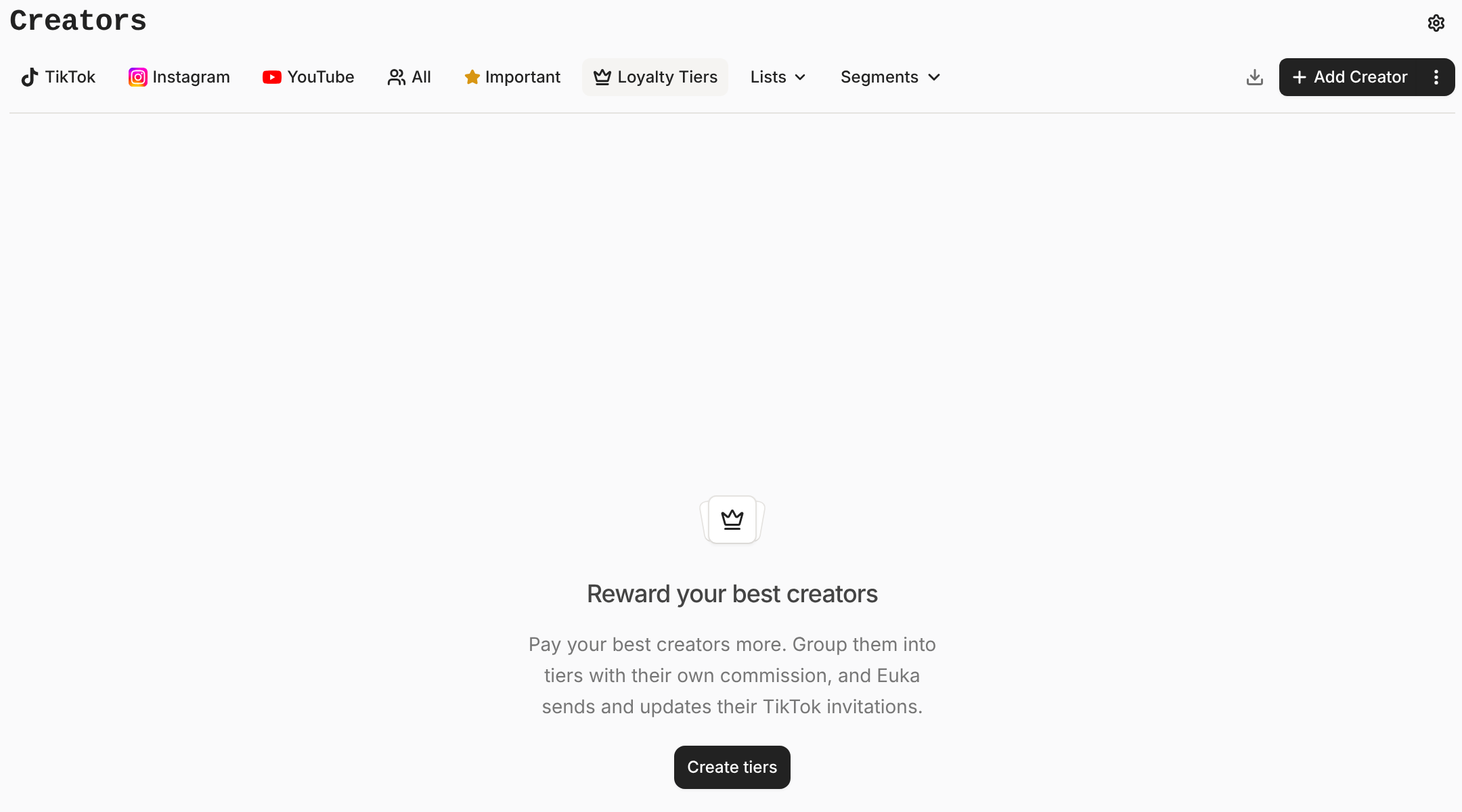
Open Affiliate CRM > Creators, choose Loyalty Tiers, and click Create tiers. Once your tiers are running, Manage tiers opens the same setup.
Setup has three steps.
Step 1: Tiers
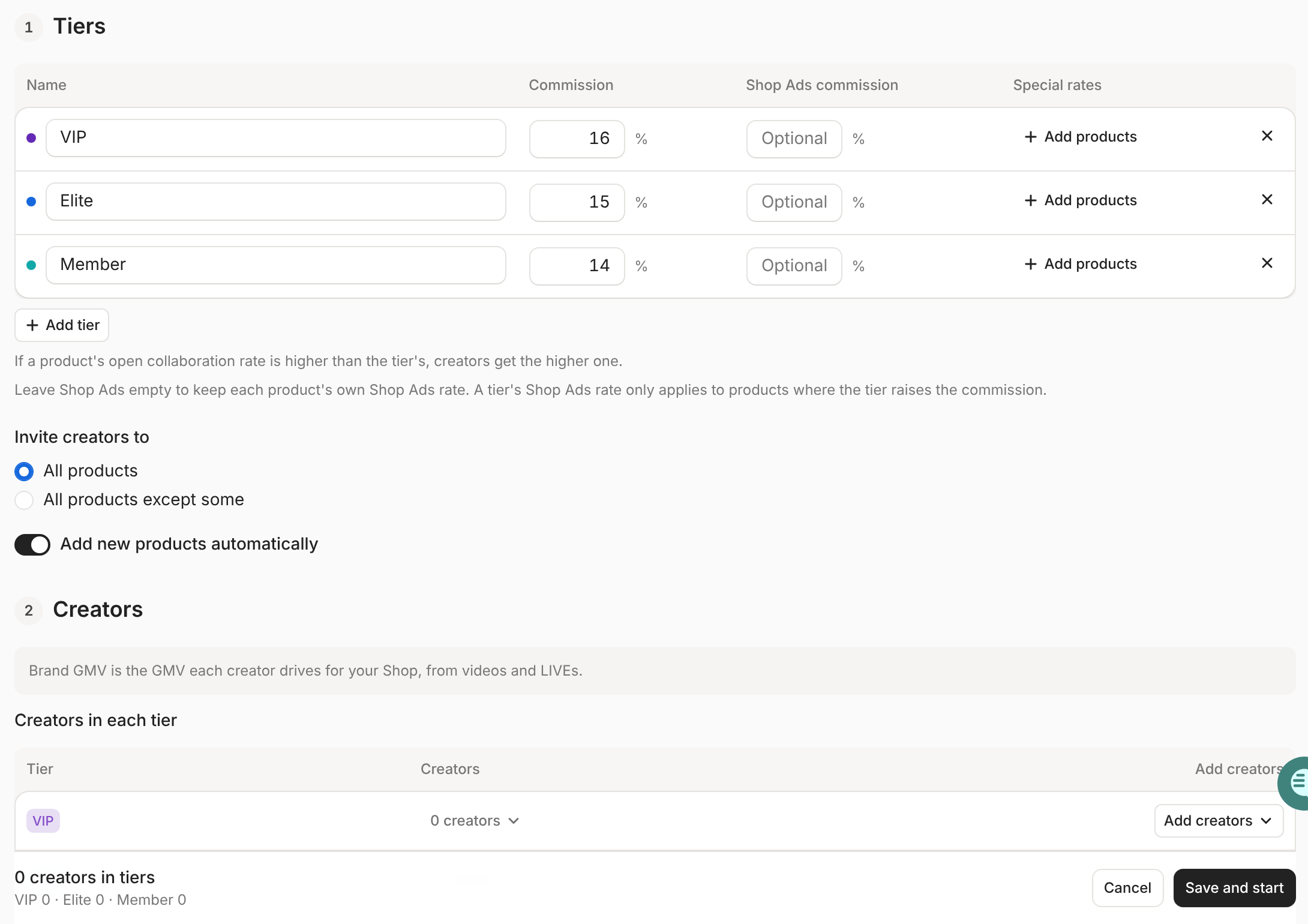
You start with three tiers: VIP at 16%, Elite at 15%, and Member at 14%. Rename them, change their rates, or click Add tier, up to 5 tiers.
Setting | What it does |
|---|---|
Commission | The tier's commission, from 1% to 80%. A tier should pay more than the one below it. |
Shop Ads commission | Optional. Leave it empty to keep each product's own Shop Ads rate. A tier's Shop Ads rate only applies to products where the tier raises the commission. |
Special rates | Optional. Add products gives the tier a different rate on certain products, such as ones you're overstocked on. It never goes below the product's open collaboration rate. |
Invite creators to | All products, or All products except some to leave products out. |
Add new products automatically | On by default: new products join every tier on their own. Turn it off and new products wait on the Products tab until you choose Add to tiers. |
Step 2: Creators
Add creators on a tier's row offers five ways to fill it:
Search by handle: enter one or more TikTok handles, separated by commas.
From a list or From a tag: add everyone in one of your lists or tags.
Upload a list: a CSV with one TikTok handle per row, in the first column.
Top by brand GMV: the creators who drove the most sales for your Shop from videos and LIVEs, by rank (for example ranks 1 to 50) or above an amount, over the last 30, 60, 90, or 180 days. This adds them once: creators don't join or leave later as their sales change.
Adding a creator moves them out of any other tier. Under Keep out of tiers, pick lists or tags whose creators should never be added to a tier.
Step 3: Messages
Euka can message creators when something changes for them. Each message can be turned on or off and edited, up to 500 characters, with variables such as {creator_name}, {tier}, and {commission}.
Message | On by default | Goes to |
|---|---|---|
Joins a tier | Yes | Every creator you add to a tier, including anyone who rejoins later. |
Moves up | Yes | Creators moved to a higher tier. |
Moves down | No | Creators moved to a lower tier. |
Leaves the tiers | No | Creators you remove. |
Commission changes | Yes | A tier's creators, when you change its commission. |
New product added | Yes | Creators who accepted their tier and earn more on the new products. |
Under Send through, pick one or more of Euka Chat (creators on the Euka app), TikTok Shop DM (every creator in a tier), and Email (creators with an email on file). Email needs a connected sending address, picked under Send from, and a subject for each message. A creator gets at most one message a day on each channel: if several things change for them that day, one message covers them all. If TikTok's daily message limit is reached, the rest go out the next day.
Click Save and start. Creators get their invitations on TikTok the same day.
What happens when you make changes
Before saving changes to running tiers, Save tier changes? lists who moves and what they'll be told.
Adding or moving creators: they get their new tier's invitation that day, and earn each product's open collaboration rate until they accept it.
Removing creators: they leave the tier that day and go back to each product's open collaboration rate.
Raising a tier's commission: creators earn the new rate from that day. Lowering it: the new rate starts the next day. Either way, they get the Commission changes message.
Changing Shop Ads or special rates: the invitations change that day, and no message goes out.
Other collaborations: a creator added to a tier leaves any other collaboration you sent through Euka on the same products, so the tier wins. The dialog shows which one before you confirm.
You can also add, move, or remove creators straight from Creators > Loyalty Tiers: select creators and use Change tier, or use a row's menu.
Follow your tiers
Creators > Loyalty Tiers lists the creators in each tier, with their Invitation status:
Accepted: they accepted their tier's invitation on TikTok.
Waiting to accept: the invitation is sent.
Not sent: they aren't in the invitation on TikTok yet. Hover over it to see why.
Left the tiers shows creators who were removed. Each row also shows How they joined and the Latest change. You can filter your whole creator list by Loyalty Tier, and use it in segments.
In Loyalty Tiers:
Products shows each product's Open collaboration rate and how many creators accepted it. Filter by New, Special rates, Not added, or Left out.
Activity lists every change, who it affected, and the message creators got. Search by @handle or filter by Tier changes, Accepted, New products, or Your changes.
When something doesn't go through on TikTok
If TikTok refused part of a change, a notice above the tiers says "Some changes didn't go through on TikTok yet. Euka tries again tomorrow." along with TikTok's reason. A few cases come up often:
No TikTok account found: Euka can't invite a creator it has no TikTok account for. Check their profile in Creators.
Your Shop's own account: TikTok doesn't let a Shop invite its own TikTok account, so Euka leaves it out. Everyone else still gets their invitation.
Taken out on TikTok: if a creator is removed from a tier's collaboration on TikTok by something other than Euka, Euka invites them back.
Pause or end your tiers
Pause, at the top of the page, holds everything in place: nobody moves and new products aren't added, but creators keep the invitations they have. Click Resume to carry on.
To stop for good, choose End tiers from the page's menu. Pick when they end: today, or in 7, 14, or 30 days. You can Tell creators with a message that includes the end date. After the end date, creators go back to each product's open collaboration rate. Until then, Keep tiers running cancels the end. Once tiers have ended, Set up tiers again starts a new setup.