LIVE Deals
Last updated: November 23, 2026
Run TikTok LIVE deals for the creators who already have your product, without going to TikTok Seller Center. Open LIVE Deals from the sidebar: it's under TikTok Shop, or under Campaigns if your sidebar still has the older layout. Every deal you create here is a deal in TikTok, and deals you made in Seller Center show in the list too, marked Made in Seller Center.
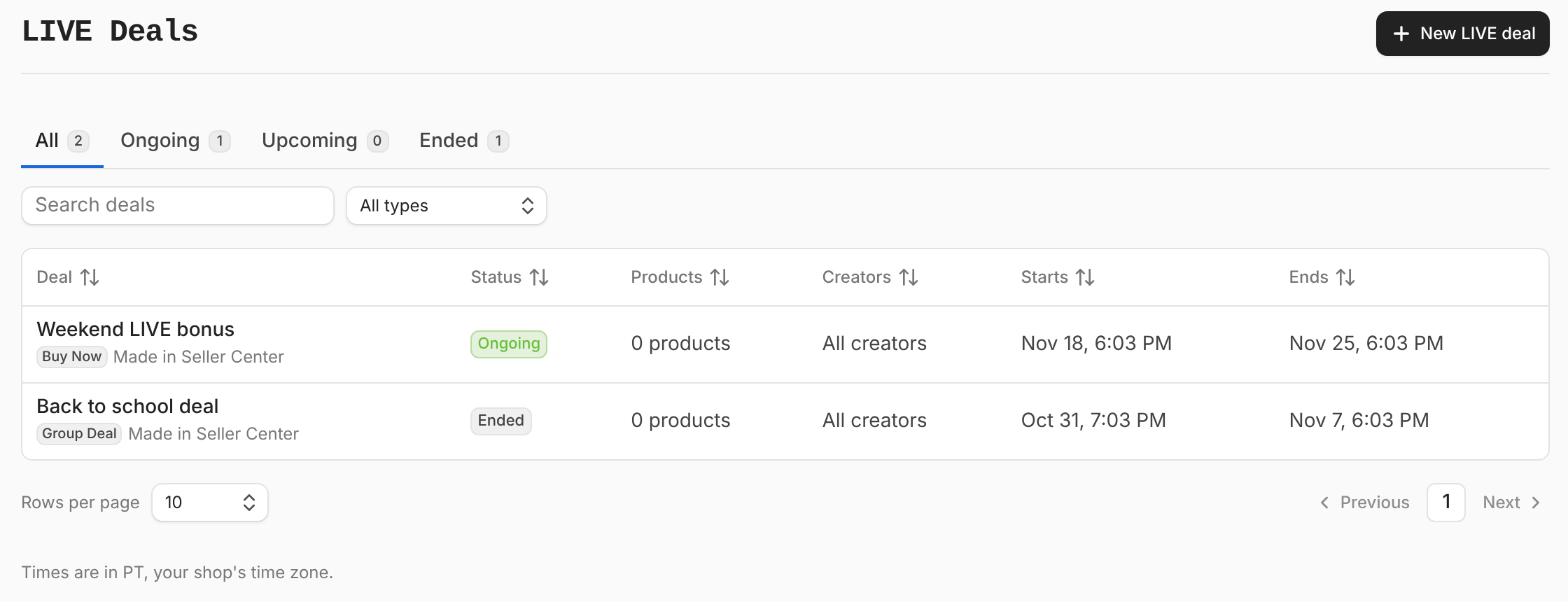
The tabs sort your deals into Ongoing, Upcoming, and Ended, and the All types dropdown filters by type. Times are in your Shop's time zone.
Deal types
Type | What viewers get |
|---|---|
Group Deal | Viewers team up in groups of 2 to 6. A full group buys at your group price. |
Price Cut | Each viewer who joins lowers the price, down to your floor price. Everyone pays the final price. |
Buy Now | No price change. The creator earns a higher commission on orders placed in their LIVE, instead of the usual rate. |
TikTok decides which shops and products can run Group Deal and Price Cut. A product also needs an Open Collaboration with a commission above 0% in TikTok Seller Center. Buy Now works for every shop and product.
Create a LIVE deal
Click New LIVE deal.
In Deal and products, name the deal, tick one or more deal types, and add up to 50 products. Each type gets its own table: set the group or floor price (below the current price), the group size or the number of people to reach the floor price, the commission (1% to 80%), and how many units each SKU sells in the deal. The units are a cap, not stock set aside. With two or more products, the row at the top of each table (for example All 3 products) fills every product at once.
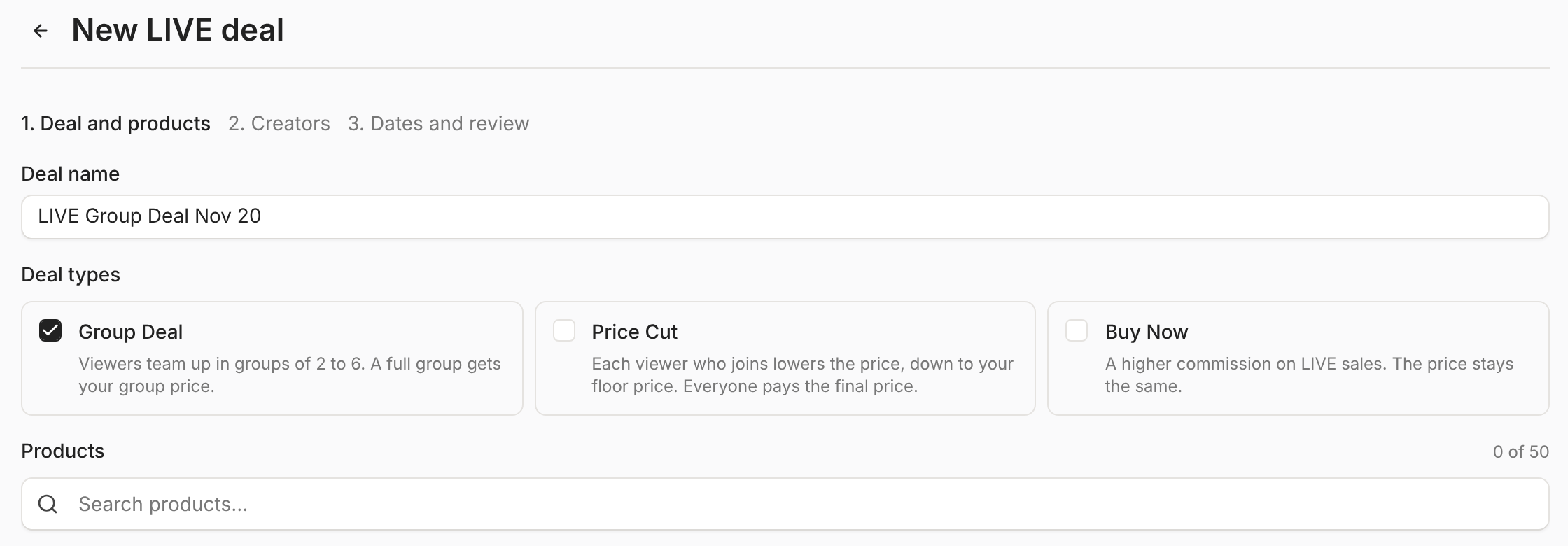
In Creators, choose who can run it:
Lists: creators in your lists, by default only those who got a shipped sample of the deal's products.
Picked creators: starts with the creators who got a sample, those with the most LIVEs in your store in the last 30 days first. Add, remove, import or export them.
All creators: any creator with LIVE access can find the deal in Product Marketplace.
TikTok allows up to 50 picked creators in one deal, and only creators Euka has a TikTok ID for can be added.
Turn on Message these creators to send each one a TikTok DM. Each creator gets one DM for all the types you create together.
In Dates and review, pick the dates in your Shop's time zone, up to 365 days, check the review, and create the deal.
Each type you tick becomes its own deal in TikTok, with the same name, dates and creators. If TikTok refuses one type, for example because it overlaps another deal on the same products and creators, the other types are still created and Euka shows TikTok's reason.
Change, cancel or stop a deal
Click a column heading to sort your deals. Open a deal to see its products, prices, and creators as TikTok has them now. Use Export in Creators to download the list with sample details and DM send dates.
Upcoming deals: change the name, dates and numbers, add or remove products, and add or remove creators.
Ongoing deals: the prices and people of its products stay as they are, commission can only go up, and unit caps can change. Products and creators can be added but not removed.
Ended deals: read only.
Cancel deal deletes an upcoming deal in TikTok. Deactivate stops an ongoing deal for every creator; it can't be turned back on.
Add creators from Livestreams or Creators
Tick creators on Livestreams or Creators and click Add to LIVE deal. Start a new deal with them, or add them to an upcoming or ongoing deal. Deals created together count as one choice, and the creators go into each of them.
DMs
DMs are sent through your TikTok Shop messages, so your shop's message limits apply. If TikTok refuses a DM, for example because the creator can't receive messages, the deal's page shows it as Not sent.
If you have questions, contact us at support@euka.ai.