Sample Budget
Last updated: November 20, 2026
Sample Budget lets you plan how many samples each product, and each SKU if you want, can go out every month, and see how many are left. Without a plan, samples tend to run out in the first days of the month, or one product takes the room you meant for another. Sample Budget counts every approval against the plan, warns reviewers before they go over, can turn down requests once a month's budget is used up if you choose, and shows where each Shop stands on your Dashboard and, for agencies, across every brand on the Agency dashboard.
Where to find it
Open Dashboard > Profit > Samples. Budgets belong to the Shop you have selected, so each Shop has its own. The budget panel sits under the six cards at the top, for example "November sample budget", and only shows for a Shop that has set a budget. To change budgets, click Edit budget & cost at the top right.
Next to the title you see Samples, used out of the month's budget, which turns gold once used up, and Used up, how many budgets are used up out of all of them. Under the title, four sections count the approved samples of products that have a budget in the month you picked:
Samples: used out of the month's budget, for example "93 / 103", with how many are left and their sample value. The trend line shows samples used day by day, and the dashed line is an even pace to the full budget by the last day.
This week: this week's samples, with one bar per week of the month. With Weekly limit on, it shows used out of this week's allowance, and the bar turns gold when a week goes over.
Open Collab and Target Collab: approved samples of budgeted products from each source, month to date.
Months
The panel has its own month, whatever dates you pick on the Dashboard. The month picker runs from the first month your Shop had a budget to 5 months ahead. Months without any budget say "No budget" next to their name.
The budgets
Below the four sections is every budget in the month: each product with a number ("All SKUs"), and each SKU with its own number ("SKU: Citrus · 3-Pack"). Each shows used out of budget with a bar, gold once used up, and how many are left. The ones closest to running out come first, 5 to a page; use Previous and Next to see the rest. Left is this month's room, even with Weekly limit on.
Edit budget and cost
Click Edit budget & cost on Dashboard > Profit to open Costs & budget. It holds your unit costs and your sample budgets side by side, so you can see what a month's samples will cost while you plan them. Under By product and SKU is every product in your Shop, unsold ones too, best sellers first. A product with several SKUs has an arrow to show them, and Expand all opens every product in the list. The sheet shows the first 150 products; search or filter to find the rest. The pencils in the column headers change every product in the list, including ones further down that aren't shown.
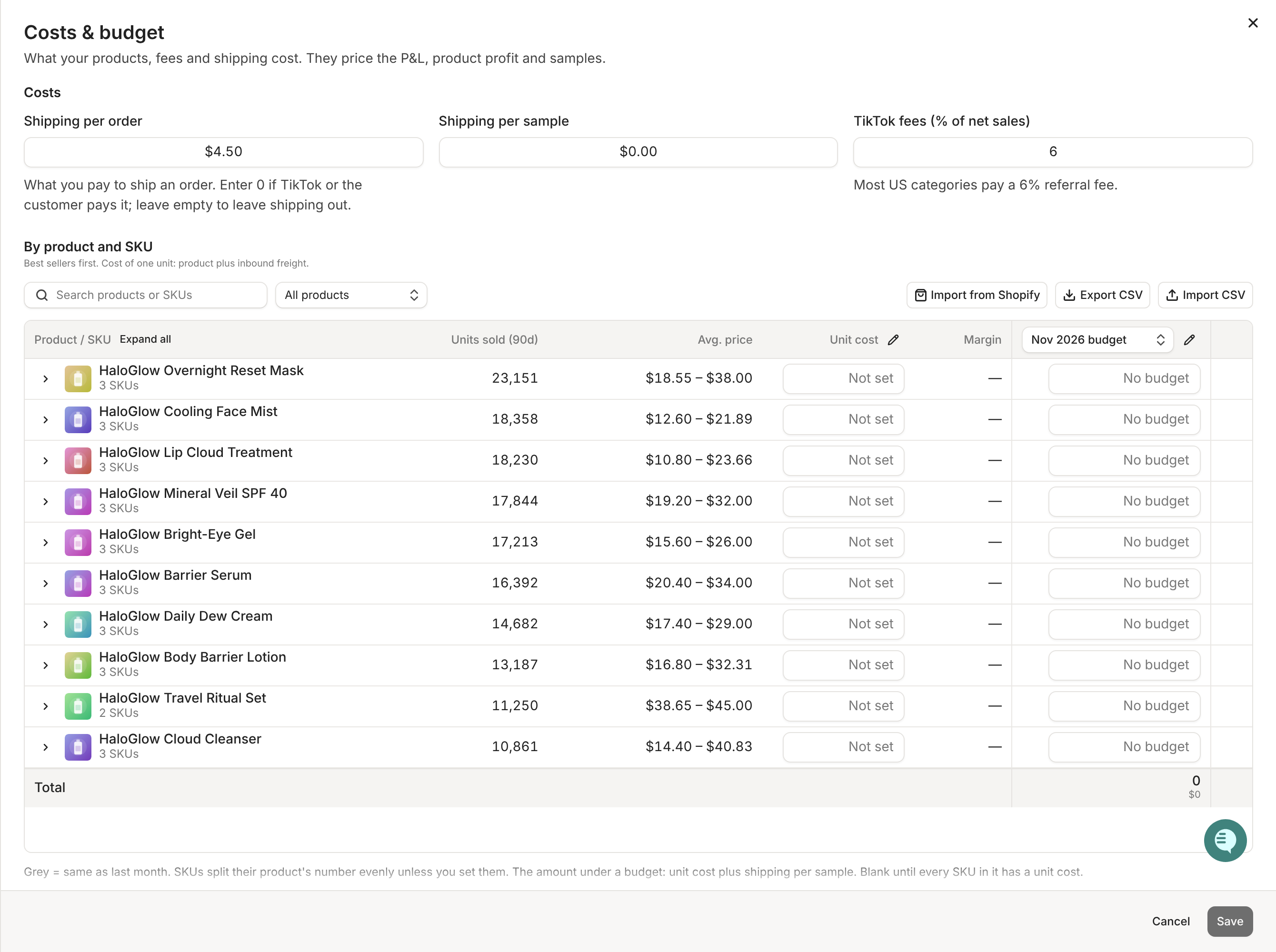
The budget column shows one month at a time. Its header is the month picker, for example "Nov 2026 budget", and it runs from this month to 5 months ahead. It opens on this month.
What the numbers mean
A number you type is set for that month, and later months follow it until one has its own.
Grey: nothing set for that month, so the product uses the month before. If Prenatal is 22 in October, 30 in November, and 35 in December, January to March show a grey 35.
"No budget": no limit that month. Every product starts as a grey "No budget". Setting "No budget" on purpose stops the budget from that month on.
SKUs work the same way. A grey SKU number is its even share of the product's number, after the SKUs with their own numbers. When a share doesn't divide evenly, the first SKUs get the extra one.
Under a product's number is what those samples cost that month: each SKU's share times its unit cost plus Shipping per sample. It stays blank until every SKU with a share has a unit cost.
Total at the bottom adds up the month's product numbers, the same total as the Samples section. The amount under it shows only when every budgeted product can be priced.
A product that is no longer in your Shop's catalog can still have a unit cost, but shows "—" for its budget.
Setting a product re-splits its SKUs
Setting a product's number, or "No budget", clears that product's own SKU numbers from that month on, and every SKU goes back to an even share. Earlier months keep their SKU numbers.
For example, Cortisol is 25 in October and its "Citrus · 3-Pack" SKU has its own 8. The other two SKUs share 25 − 8 = 17, so they get 9 and 8. If you then set Cortisol to 15, the three SKUs become 5, 5, and 5, and the 8 is gone.
So to give a SKU its own number, set the product first, then the SKU. When a CSV has both rows, Euka applies the products first and the SKU numbers after, so your SKU numbers stay.
If the SKUs' own numbers add up to more than the product, the product's number turns gold that month, with the sum under it, for example "SKUs add up to 38". You can still save. The product's number is still the limit for the product as a whole.
Changing many at once
Click a box and type a whole number. Clearing a number you set sends the box back to grey.
The pencil next to Unit cost opens Set unit cost: choose % of price (of each SKU's Avg. price, to the cent) or Amount. Only SKUs without a unit cost is on at first, so costs you already set stay.
The pencil next to the month opens Set November budget (with the month shown): type a number or pick No budget, then Apply. It sets every product in the list from that month on.
Both pencils apply to the products in the list, after Search products or SKUs and the filter: All products, No unit cost, or No budget (no budget in the month shown).
⋯ on a row offers Clear budget, which clears the number from the month shown on. On a product it clears its SKUs too.
Changed cells turn light yellow. Nothing is saved until you click Save, which saves costs, budgets, and rules together. Cancel closes the sheet, and closing with changes asks "Discard changes?" first.
Sample budget rules
After the table, Sample budget holds two rules. Both apply to every budget in the Shop and save with Save.
Weekly limit splits every budget across the weeks of the month, so samples don't all go out in the first days. It is off by default. How weeks work is explained under How samples count, below.
When used up decides what happens once a product's budget has nothing left.
Warn only is the default. Reviewers see "Over budget" and can still approve.
Auto-reject turns requests down for you. Once a product's monthly budget has nothing left, the requests waiting for it are rejected, and so are new ones as they arrive. A SKU with its own number works the same way, on its own number.
With Auto-reject, a Rejection message appears with an Edit message button. The creator gets this message on TikTok. The default is "Thanks for your interest! We've sent all the samples of this product we can this month. Please request again next month." It can be up to 500 characters, and variables like {{name}} aren't supported.
What Auto-reject does and doesn't do:
Only a used-up month rejects. A used-up week only warns, even with Weekly limit on.
Grey even shares never reject, and products without a budget are never affected.
Requests that come through TAP or are managed by an agency are left alone. Their approvals still count against the budget.
TikTok can't undo a rejection, so a creator has to request again. Because of that, a change that would reject requests right away asks first, for example "Reject 4 waiting requests?" You see this when you save budgets.
The creator gets the message the next time Euka syncs your Shop's sample requests, not at the moment of rejection. It is sent as a TikTok message, so it uses your Shop's messaging allowance.
Rejected requests show a gold "Over budget" in the Auto Rejected column of the Canceled tab. Requests rejected by your Auto Review agents still show "Yes".
Plan in a spreadsheet with a CSV
One file holds both unit costs and budgets.
In Costs & budget, click Export CSV. You get
costs-and-budget.csvwith the products in the list, after search and filter. Each product has a row with "All SKUs", then a row per SKU when it has several. A product with one SKU is one row. The columns are product_id, sku_id, product, sku, units_90d, avg_price, unit_cost, and a budget column for this month and each of the next 5, such as budget_2026-11. Product, SKU, units, and price are there to read, and import ignores them.Fill it in:
unit_cost: a number on a SKU row sets that SKU. A number on a product row sets every SKU the file doesn't price itself. An empty SKU row takes its product row's number, and clears the SKU's cost if that is empty too.
Budgets: a number on a product row is the product's budget from that month on. Its SKUs re-split evenly from that month, as in the sheet. A number on a SKU row is that SKU's own number.
"No budget" stops the budget from that month on.
An empty budget cell means the same as the month before (or the even share, for a SKU), so it clears a number set for that month.
Use whole numbers for budgets. Commas, as in 1,200, are fine.
Click Import CSV and pick the file. The numbers go into the sheet but aren't saved yet. Changed cells turn yellow, and products whose SKUs changed open. Rows you take out of the file keep what they have, so importing an export unchanged changes nothing.
Check the strip above the table, for example "edited.csv: 12 products changed, not saved yet. 1 cell or row left out." Click Show to list each problem with its line, column, and value. Tick Show changes only to see just what changed, or click Undo import to put the sheet back as it was.
Click Save.
A row is left out when its product isn't in your Shop ("No product with this ID in the shop.") or its SKU isn't under that product. A cell is left out when a unit cost isn't a number of 0 or more, or a budget isn't a whole number or "No budget". A column for a past month, or past the 6 months shown, is left out too. The rest of the file still imports. Download lines left out gives you just those lines, as they were in your file, with a problem column in front, so you can fix them and import them again. If a file is missing the template's columns, Euka says "This file doesn't have the template's columns. Export CSV to get the template."
Some lines import but are worth a look, marked in gold: SKUs that add up to more than their product, a unit cost above the average price, and the same SKU on two lines. Euka doesn't change your numbers for you, and you can still save.
Weekly limit and When used up aren't in the CSV. Set them in the sheet.
If you use Excel, after you save the CSV in Excel once, export a new file next time instead of opening the saved one again. Opening it in Excel a second time can turn the long product and SKU IDs into numbers like 1.7E+18, and Euka leaves those rows out because it can't match them to your products.
How samples count
A sample counts when it is approved, in the day, week, and month of its approval in Pacific time.
Every approval counts, wherever it came from: Open Collab, Target Collab, Euka Outreach, contests, and agency and TAP requests. That includes approvals made in TikTok Seller Center and by your Auto Review agents.
If an approved sample is canceled, it goes back into the budget.
Each month starts fresh. Samples left over don't move to the next month.
A request uses its product's number, and its SKU's own number if the SKU has one. Both need room. Grey even shares are only a guide and never count as a limit. For example, Cortisol is 25 and "Citrus · 3-Pack" has its own 8. A 3-Pack request needs room in both Cortisol and 3-Pack. A "Berry · 30 ct" request only needs room in Cortisol, even after Berry's grey share is used up. A product with no number of its own but SKUs with their own numbers is limited only on those SKUs.
Left is the budget minus this month's approvals. With Weekly limit on, the dashboards and the Left column still show this month's room, while the This week column, the review badges, and the approve box show the smaller of that and this week's room.
How the weekly limit works
Weeks run Monday to Sunday inside the month, so the first and last weeks can be short.
Each week gets a share of the month's number by its number of days.
What a week doesn't use carries into the next week. A week that goes over doesn't shrink the weeks after it, and the month's number still caps the total.
Weeks only apply to the month under way. A past month is judged as a whole.
For example, in October 2026 a budget of 31 gives the weeks of October 1 to 4, 5 to 11, 12 to 18, 19 to 25, and 26 to 31 shares of 4, 7, 7, 7, and 6. If the first week uses 2, the second week can use 7 + 2 = 9.
While reviewing requests
In View Requests > To Review, expand a creator. Under each request whose product has a budget, next to "Already sampled", you see:
"Budget: 3 left" in grey while there is room. The number is the smallest Left among the budgets the request uses.
"Over budget" in gold when there isn't.
A collapsed creator row shows "Over budget" when any of their requests is over, so you can spot them without opening every row.
With When used up on Warn only, going over only warns you and you can always approve. (With Auto-reject, requests for a product whose month is used up are turned down shortly after they arrive. TAP and agency-managed requests are left alone.) When you approve one or more requests, Euka checks them in the order they're listed: the ones that fit take the room, and the rest are over. If any are over, the approve box shows a gold note, such as "This goes over your Sample Budget" for one request or "14 of 24 go over your Sample Budget" for several. Below it, each budget that runs short gets a line like "Approving 9 · 3 left this week" (or "this month"). Choose Approve 10 within budget to approve only the ones that fit, or Approve all 24 to approve them all.
On your dashboards
Shared Dashboard links
People you share a Dashboard link with see the budget panel too, for this month only, without the month picker or the four sections.
Agency dashboard
If you manage several brands, the Brands page of the Agency dashboard (in the brand switcher and the avatar menu) adds a column for each brand's budget this month, for example October budget. It shows used out of budget with a bar, and a gold "2 used up" when any budget is used up. A brand with no budget shows a dash, and "Couldn't load" means its budget didn't load, so refresh the page to try again.
Click the cell to open that brand's budgets under its row: each product (and each SKU with its own number), with this month's used out of budget and Left, closest to running out first. Sample Budget at the bottom opens that brand's Dashboard > Profit > Samples in a new tab.
Under Export:
Brands (CSV) adds four columns: "October budget" ("No budget" when the brand has none), "October samples used", "October samples left", and "October budgets used up".
Sample budgets (CSV) has one row per product, and per SKU with its own number, for every brand with a budget: "Brand", "Store", "Product", "SKU", "October budget", "October samples used", and "October samples left". A brand whose budget didn't load gets one row that says "Couldn't load", so export again after a refresh.
FAQs
Do approvals made outside Euka count?
Yes. Approvals made in TikTok Seller Center and by Auto Review count the same as approvals you make in Euka.
Why did a sample move to a different day?
Euka counts a sample by the approval time TikTok reports. Until Euka has read that time, it uses the moment it saw the approval, so a sample approved close to midnight Pacific time can move by a day once TikTok's time comes in. Near the end of a week or month, that can also move it into the next or previous one.
Does going over the budget stop a sample?
Not by default. With When used up on Warn only, Sample Budget warns you while reviewing and on the approve box, and you can always approve. With Auto-reject, requests are turned down once a product's monthly budget has nothing left. See When used up, above.
Can I change a past month?
No. Past months are view only. You can change this month and the months ahead.