Content Moderation
Last updated: October 3, 2026
Content Moderation checks your creators' TikTok videos against rules you set: words that must or must not be said or shown on screen, and plain-language rules that AI checks. It flags the videos that break a rule, so you can message those creators or stop GMV Max, TikTok's automated ad campaigns for Shops, from using the videos as ads.
Why use it
You can't watch every video creators post about your products to check that it follows your rules. Content Moderation checks new videos for you and flags the ones that break a rule. You decide what happens next.
Where to find it
Go to Content > Content Moderation. It has two tabs:
- Setup Rules holds your rules, Save & Scan, and your last scan's progress and result.
- Scan Results lists the videos we checked. The red number on the tab counts Violated videos.
Who can use it
Content Moderation is in every plan, and it needs a connected TikTok Shop. Removing videos from GMV Max also needs TikTok Ads connected, in Settings > Integrations > TikTok > Ads: see GMV Max.
How to set up rules and run a scan
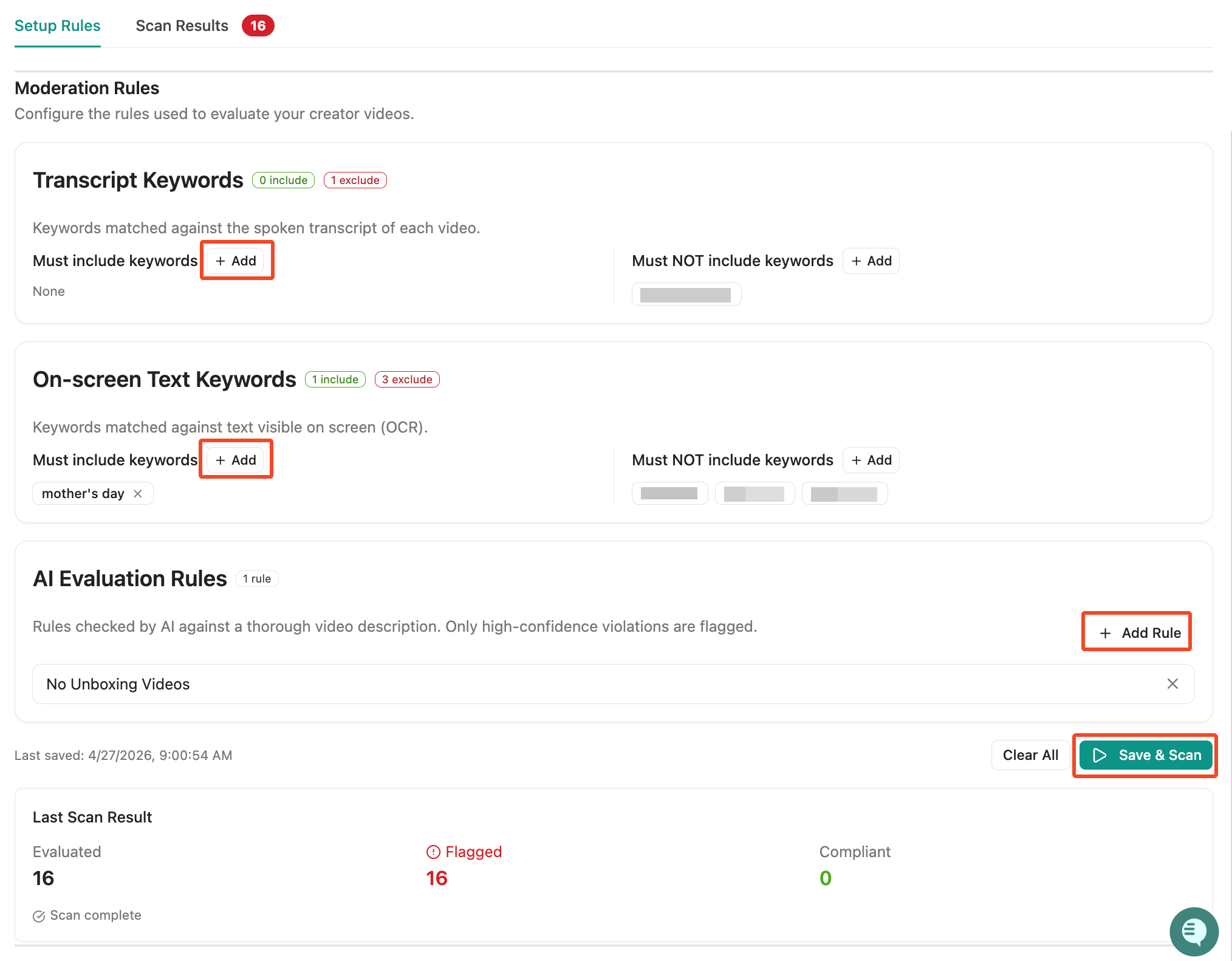
The screenshot shows Setup Rules: Transcript Keywords and On-screen Text Keywords, each with a Must include keywords and a Must NOT include keywords list, then AI Evaluation Rules. Clear All and Save & Scan sit above the Last Scan Result.
- Go to Content > Content Moderation and open Setup Rules.
- Under Transcript Keywords (what's said in the video) or On-screen Text Keywords (text shown on screen), click Add next to Must include keywords or Must NOT include keywords.
- Type a keyword and press Enter. To add several at once, separate them with commas.
- Under AI Evaluation Rules, click Add Rule.
- Describe the rule in plain words, for example "No children under 13".
- Click Save & Scan.
- If Auto-Scan is off, choose Scan Once or Scan & Enable Auto-Scan.
We pull each new video's transcript, on-screen text, and a description of what happens in it, then check the video against your rules. Last Scan Result then shows how many videos were Evaluated, Flagged, and Compliant.
How a video is judged
A video is Violated when a must-include keyword is missing, a must-not keyword appears, or AI finds a high-confidence breach of one of your AI rules. Otherwise, it's Compliant.
Keywords match anywhere in the text and ignore capital letters, so "sale" also matches "wholesale". AI rules are checked against the video's description and transcript.
How to read and act on the results
On Scan Results, switch between Violated and Compliant. Status reads Violated, Compliant, or Could not analyze. Violations says what broke a rule, for example [Transcript] found: discount, or [AI] followed by the rule.
Hover over an [AI] violation to see the evidence. From the results, you can act on the videos:
- Message Non-Compliant Creators (on Violated) makes a list of the creators behind Violated videos. It then opens the setup of a Message Only outreach agent for that list, with a suggested message you can edit. See Outreach agents.
- Remove videos from GMV Max (on Violated) stops GMV Max from using the videos you tick as ads. Ticks carry across pages, and Select all … violated videos takes up to 1,000 at once. The GMV Max column then shows each video's state.
- Collect Spark Codes (on Compliant) makes a list of the creators behind Compliant videos and opens the setup of a Message + Spark Code Form agent. A Spark Code is a code from the creator that lets you run their video as an ad: see Spark Codes.
- Export CSV downloads the view you're on, with each video's link, creator, views, status, violations, and transcript.
Rules and limits
- Scans cover the creator videos tied to your Shop.
- Each of the four keyword lists takes up to 200 keywords, and a keyword can be up to 100 characters long. You can add up to 50 AI rules, each up to 500 characters long.
- A scan checks videos posted in the last 7 days, plus older videos an earlier scan already processed. A video posted more than 7 days before your first scan is never checked.
- When you change your rules and click Save & Scan, the earlier results are cleared. Cancel Scan stops a scan and clears the results too.
- Auto-Scan is off until you choose Scan & Enable Auto-Scan. Once it's on, we check new videos every 8 hours.
- There's no separate off switch for Auto-Scan. Clear All turns it off and removes all your rules.
- Remove videos from GMV Max works on up to 1,000 videos at a time. TikTok applies it in about 20 minutes. The video stays on TikTok and in your results.
What we don't control
- Content Moderation checks videos after creators post them. It can't stop a video from being posted or take one down.
- TikTok applies GMV Max removals. We can't change a campaign from Euka if it's paused, or if it uses custom video selection instead of automatic selection.
When something goes wrong
- No scan results yet: run a scan from Setup Rules with Save & Scan.
- Failed to start scan: the message under it says why. If it says the store has no linked Shop, connect your TikTok Shop. Otherwise, contact us at support@euka.ai.
- Could not analyze: we couldn't process the video, for example because its file couldn't be downloaded. It's listed under Violated so you can check it yourself.
- No videos were removed: the videos aren't in any GMV Max campaign we've synced. GMV Max data syncs every 8 hours, so a recent addition may not show yet. A video that was never used as an ad never will.
- Campaign not eligible: the video's campaign is paused or uses custom video selection. Change it in TikTok Ads Manager, then try again.
- Removal failed: hover over the label to see the reason, then try again.
FAQs
Does Content Moderation approve videos before they go live?
No. It checks videos after creators post them and flags the ones that break your rules. You decide what happens next, such as messaging the creators or keeping the videos out of GMV Max.
Why did my scan check so few videos?
A scan only picks up videos from the last 7 days, along with older ones that earlier scans processed. Turn on Auto-Scan so we keep checking new videos.
How do I turn off Auto-Scan?
Click Clear All on Setup Rules. It also deletes your rules, so note them down first if you want to add them back.
Does removing a video from GMV Max delete it?
No. GMV Max just stops picking it as an ad. The video stays on TikTok.