Invoices, wallet, and payment methods
Last updated: October 5, 2026
Your brand's Billing page holds your invoices and receipts, the cards and bank accounts you pay with, and your Euka Balance: money you add ahead of time to pay creators without a processing fee.
Where to find it
Go to Settings > Brand > Billing. Organization owners and admins can also use Manage Subscription in the avatar menu, at the top right.
The tabs are Overview, Plans, Wallet, Payment methods, and Invoices. What Overview shows is described below. For your plan and usage, see Plans and limits and Change or cancel your plan.
On an organization with more than one brand, everyone in it also sees Organization at the bottom of the Settings sidebar. Its Subscriptions page covers every brand, with an Invoices tab for all of them that owners and admins can open. An organization with one brand has no Organization settings: its billing is all on this page. See Brands, organizations, and licenses.
Who can use it
Billing is on every plan. The page opens even when your brand has no active plan, so you can always pay.
Everyone on a brand can open its Billing page. What they can change depends on their role (see Team members and roles):
| What | Who |
|---|---|
| Change the plan or its card (Plans, Change plan, Update payment) | Organization owners and admins, when the organization has one brand. With more brands, the plan is managed in Organization > Subscriptions, and Plans is hidden on each brand. |
| Manage payment methods, add funds, and see invoices | The brand's owner and brand admins, plus organization owners and admins |
| See the Euka Balance | Everyone on the brand |
If you can't change the plan, Overview shows it read-only, as described below.
Your plan and next payment
On an organization with one brand, the organization's billing is the brand's. The organization's members see all of it on Overview:
- Next payment: the amount, and "Due" with the date. A discounted payment shows in green, with the full price crossed out and the coupon shown beside Next payment. If your plan is set to end, it also says "Plan ends" with the date. When there's more to the payment than one line, a breakdown lists each line, any discount, Tax, and Account balance.
- Paid with: the card or bank account the payment is charged to, with the card's expiry date or a warning: "Expires …, before your next payment" or "Your last payment didn't go through". Owners and admins can click Update payment. Stripe's page for changing your plan's card opens, and brings you back to Billing. Members without billing access see On file.
- Plan: your plan's name and its price per billing period. Owners and admins can click Change plan, which opens the Plans tab, and the owner can click Cancel subscription. Licenses are only mentioned if you pay for one you don't use. Add-ons are listed under Add-ons.
Teammates on the brand who aren't members of the organization see only the plan's name and status, and "To change it, ask …" with the owner's email.
On an organization with more than one brand, Overview shows only this brand's plan: its name, its status, "Uses one of …'s licenses. … is billed for it." or "Has no license from … yet.", and "Billing is managed by the organization." Organization owners and admins can click Open organization billing. Everyone else sees "To change it, ask …" with the owner's email.
How to find an invoice or receipt
Invoices lists this brand's invoices and charges: your plan, wallet deposits, and payments for creator payouts, such as contests and usage rights (permission to use a creator's video in your own ads). On an organization with one brand, its owners and admins see every invoice of the organization here, not only this brand's.
- Open the Invoices tab. It opens on This month.
- Pick a period on the left.
- Filter by type, such as Subscription, Wallet deposit, or Usage rights.
- Click an invoice number to open the invoice. You can download it there and, once it's paid, its receipt.
PDF opens an invoice as a PDF. Download all invoices saves every PDF invoice that matches your filters in one ZIP file. Tick rows first to download only those.
On an organization with one brand, owners and admins can also find the plan's invoices in Stripe's billing portal: on Plans, click Adjust plan or licenses.
Payment methods
Payment methods lists the cards and US bank accounts this brand pays with, in one list. Add one with Add payment method.
Every method belongs to the brand you added it on. Teammates of your other brands can't see or use it, and nothing is shared across your organization. One method can be the brand's Default: creator payouts, usage-rights payments, and wallet top-ups charge it unless you pick another, and Set as default moves it. With no default, they charge the first method in the list.
To take a method off the brand, click its trash icon, then Remove in Remove this payment method? ("This brand won't be able to pay with it anymore."). A method a live contest settles on can't be removed until you pick another one on that contest.
Your plan's card is changed in Stripe, not here. On a single-brand account it's also this brand's card, so it's listed with a Pays plan badge and has no remove button. On a multi-brand account it belongs to the organization and isn't listed, unless the plan is charged to one of this brand's cards, which then shows Pays plan.
A bank account entered by hand shows Pending verification until you confirm the small deposits Stripe sends it within 1–2 business days. Click Verify to enter them. It can't be charged until then.
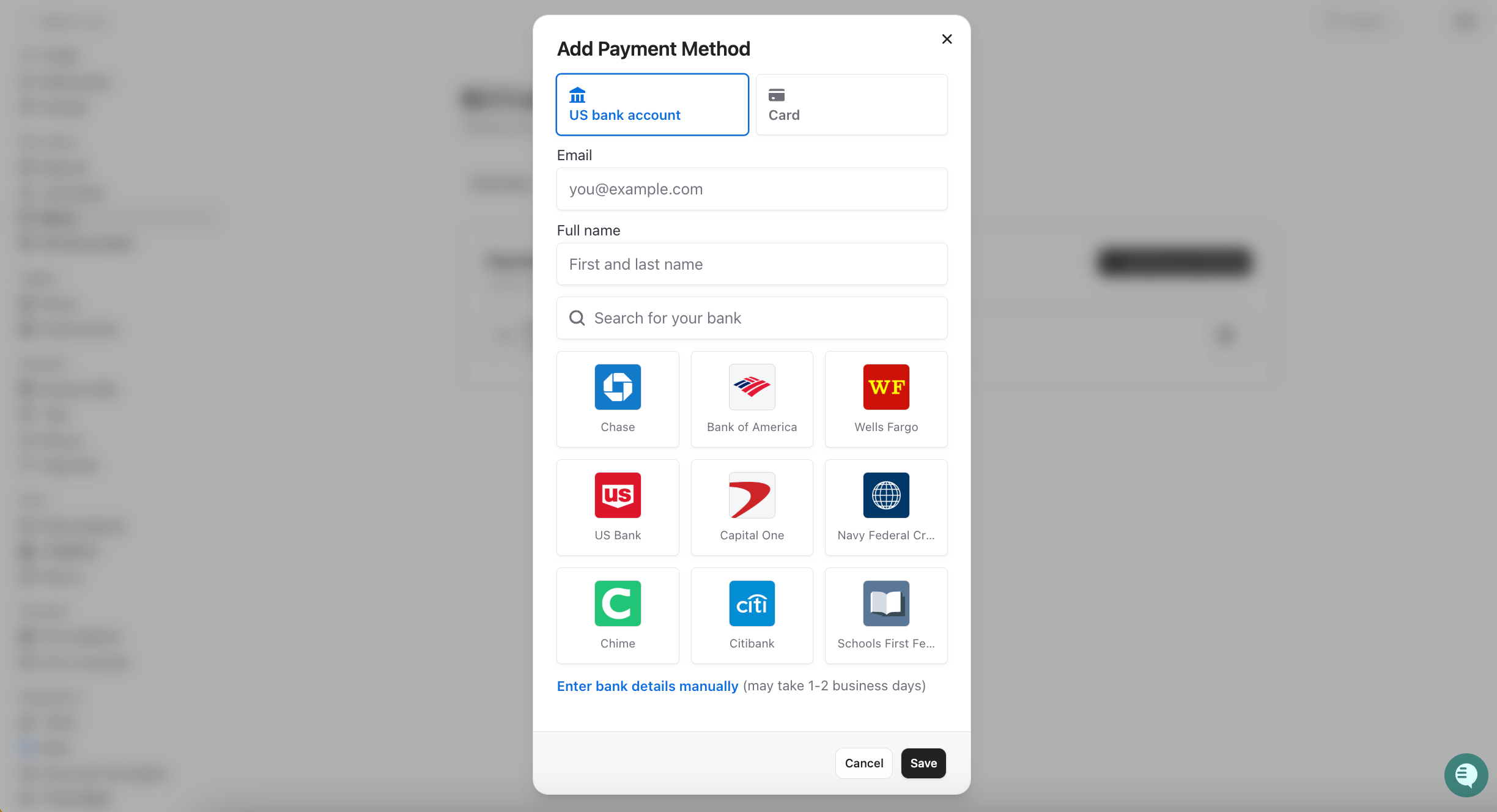
The image shows the Add Payment Method window. Choose US bank account or Card, search for your bank or enter its details by hand, and click Save.
For creator payouts, usage-rights payments, and wallet top-ups, the method sets the fee:
| Method | Processing fee | Money arrives |
|---|---|---|
| US bank account | None | In 3–5 business days |
| Card | 5%, at least $1 | Right away |
The card your plan is charged to
- Single-brand account: on Billing > Overview, click Update payment under Paid with. Stripe's page opens and brings you back to Billing.
- Multi-brand account: go to Settings > Organization > Subscriptions and click Update payment under Paid with on the Overview tab. Only organization owners and admins see it. The same button is on the Payment needs attention notice when a subscription is past due.
The new card is used for every subscription in your organization from then on. If some of them are still on the old card, you'll see "Your new payment method is saved, but some subscriptions still use the old one. Reload the page to try again."
Euka Balance (wallet)
Wallet shows this brand's Euka Balance: Available, Pending payouts, Total deposited, and recent activity. Each brand has its own balance.
When you pay out a contest or retainer, you can pay from Euka Balance, with no processing fee, if it covers the whole payout. It can't pay usage rights or your plan. See Paying creators.
How to add funds
- On Wallet, click + Add Funds.
- If you manage more than one brand, check the brand under Depositing into, and tick the box that confirms it.
- Enter at least $5.
- Choose a payment method, or choose Add new payment method.
- Check the Processing fee and Total charge, then click Deposit.
Card deposits are available right away, and bank deposits take 3–5 business days to clear. Each deposit has its own invoice, with the type Wallet deposit.
Rules and limits
- The smallest wallet top-up is $5.
- Money in Euka Balance can't be withdrawn or moved to another brand.
- Paying by invoice, by card or ACH bank transfer, is available on request (as of September 2026). To ask for it, contact us at support@euka.ai.
When something goes wrong
- "Re-link your bank account": creator payouts now go through a separate Euka payments account. Cards moved over, but a bank account saved before the change has to be linked again for payouts. Add it with Add payment method.
- "Payment methods for this brand are managed by its admins" or "Invoice access is restricted": your role can't manage this brand's billing. Ask the brand's owner, a brand admin, or an organization owner or admin.
- "Your organization's plan is charged to this payment method, so it can't be removed while the plan uses it.": change the plan's card first, as described above, then remove this one.
- "Your last payment didn't go through", under Paid with or in a Payment needs attention notice on Overview: your plan stays active while you update your payment method. Owners and admins can click Update payment to change the card.
- A deposit fails: nothing is added to your balance. You see your card's or bank's reason, or "We couldn't process your deposit." Try again or use another method, and if it keeps failing, contact us at support@euka.ai.
FAQs
I can't find the Billing tab, or the options on it. Why?
Billing is in Settings, under Brand. Without billing access, you can view it but not change it. On an organization with more than one brand, the plan is changed in Organization > Subscriptions.
Can each brand pay with its own card?
Yes, and each brand has to. A card or bank account belongs to the brand you added it on, and no brand can pay with another brand's method.
Where is my plan's card?
On a single-brand account, it's in Payment methods with a Pays plan badge. On a multi-brand account, it belongs to the organization and is listed only if the plan is charged to one of this brand's cards. Either way, you change it in Stripe: click Update payment under Paid with on Overview, on Settings > Organization > Subscriptions if you have more than one brand.
Can I get money back out of Euka Balance?
No. The balance can only pay that brand's creators.
Why did I pay 5% extra?
That's the card processing fee on creator payouts, usage-rights payments, and wallet top-ups. A US bank account has none.
Where are my usage-rights invoices?
They're in Ads > Usage Rights > Invoices, and here in Invoices with the type Usage rights. See Automatic invoicing for usage rights.