Licensed Content library
Last updated: November 20, 2026
Find, download, and reuse licensed creator content in Ads > Licensed Content. Creator videos and images sit on two tabs, so you can see at a glance which ones you haven't put to work yet:
Not in ads holds licensed content that no Meta ad uses yet.
In ads holds content used in at least one of your Meta ads, including through an edited version you made of it. Its Ads column shows how many ads use each video.
Each tab shows its count, and a search that only matches on the other tab tells you how many it found there. Brand Assets holds your team's own files. The library is available on every plan. Sending videos to Meta also requires Meta Ads.
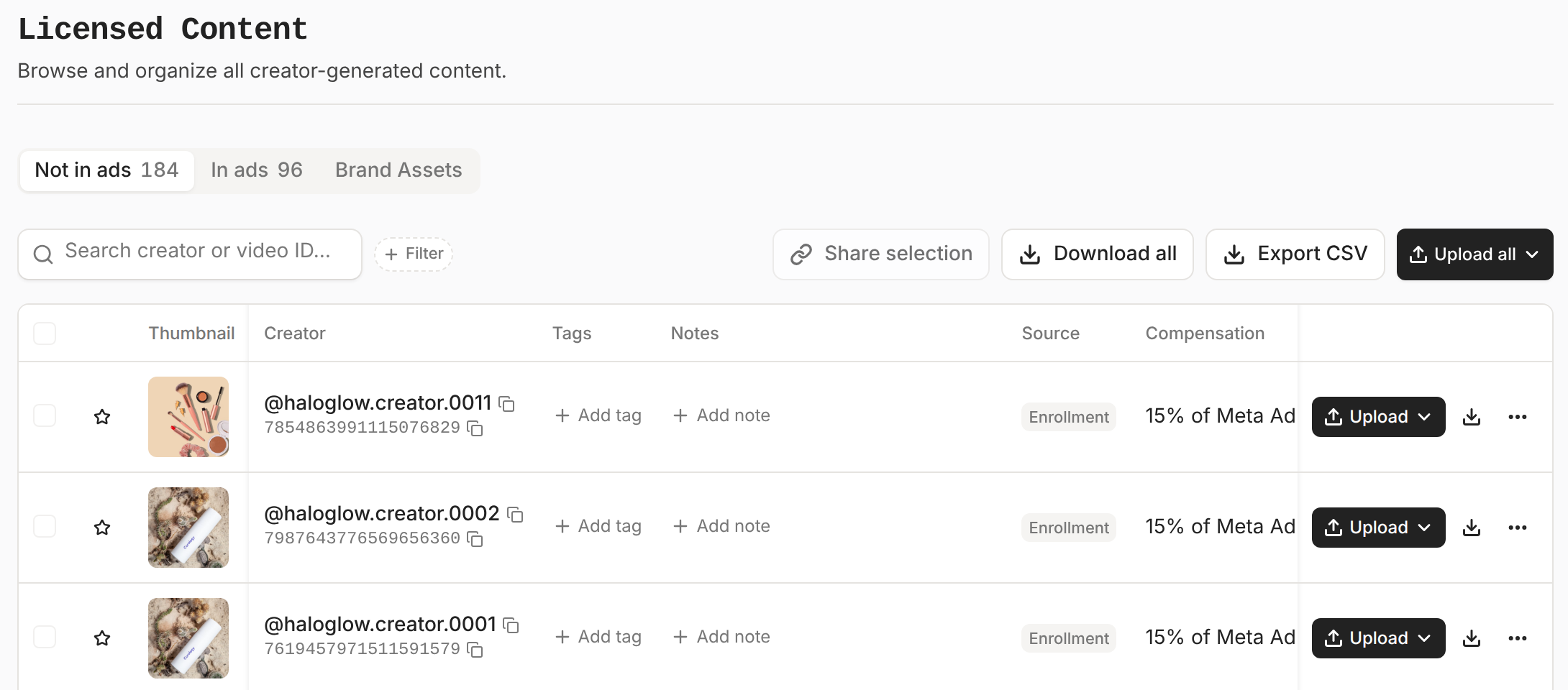
What appears in the library
Content arrives when its license starts: when the creator accepts a usage rights offer, whether it's free, a percentage, or a flat fee you haven't paid yet. Videos licensed through Meta Ads programs, retainers, contests, and marketplace campaigns also appear here. Older videos licensed from a Spark Code show Source: Spark Ads. A Spark Code no longer adds a video here. Source identifies where the rights came from.
The library can include TikTok videos, Instagram posts, and files creators upload in the creator app. Program content leaves when its Meta Ads program ends or the creator leaves or is removed. Ads already running on that content can still earn commission until you stop them in Meta Ads Manager. After a program ends, Ads in Meta Ads lists them under Source: Ended program.
Find and organize content
Search by creator or video ID. Filter narrows by favorites, source, platform, content type, resolution, tags, products, posted date, date granted, or Compensation: how the current license pays, Flat fee, Commission (% of sales), or Free. The products filter needs a connected TikTok Shop, because products come from your Shop's catalog. Some brands also see Ad potential: a grade from A to D for each video. The grade comes from content checks every video gets (the hook, how the product is shown in use, the selling story and pacing). When Content Insights is set up for the product, it also counts how well the video matches what's working in that product's ads. Sort by the Ad potential column to see the best first. The grade comes from the score alone. Problems that could stop you running a video as an ad show in the Flags column instead: Personal info on screen, Wrong product, Competitor product, a broken Brand rule, Double discount, or Slideshow or stock footage. The column also shows when a video mentions TikTok Shop or a discount, which you may need to cut before running it elsewhere. Filter by Flags to find videos with a particular flag, or to see only videos with no flags. Open a video and its Ad Readiness tab shows the 0-100 score behind the grade and the breakdown, with timestamps you can play from.
Date Granted, newest first, is the default sort. You can switch to Posted Date, TikTok Revenue, or TikTok Views. Columns show compensation, license duration, linked Meta ads and their spend and sales, download readiness, and whether a creator upload has arrived.
Two filters help when choosing files for ads:
Resolution > 1080p selects files with at least 1,080 pixels on the shorter side. Their thumbnails carry a 1080p chip, also shown under Selected videos when creating Meta ads. 720p or below includes smaller files and files not yet measured; All resolutions clears the filter.
Content type selects Video or Static image. TikTok photo posts count as videos because Euka converts them to slideshows.
These filters also apply to Export CSV and Upload all.
Click a star to favorite content. Use its Tags cell to select tags or create one; an empty cell shows Add tag. The menu stays open so you can pick several, and your choices save when you close it. Once your brand has a tag, Manage tags at the bottom of that menu lets you search, rename, or delete tags. Names must be unique and at most 100 characters. Deleting a tag removes it from every video after confirmation and cannot be undone.
Hide a creator's videos
If a creator's videos aren't ones you plan to use, open the … menu on any of their videos and choose Hide with their handle. All of their videos leave the page for your whole team. Hiding changes nothing else: their licenses, ads, and payments carry on as before.
Once you've hidden someone, a Hidden creators button appears with the number hidden. Open it and click Unhide to see that creator's videos again.
Keep notes on videos
Use the Notes column to track what your team plans to do with a video, such as an edit before it runs as an ad.
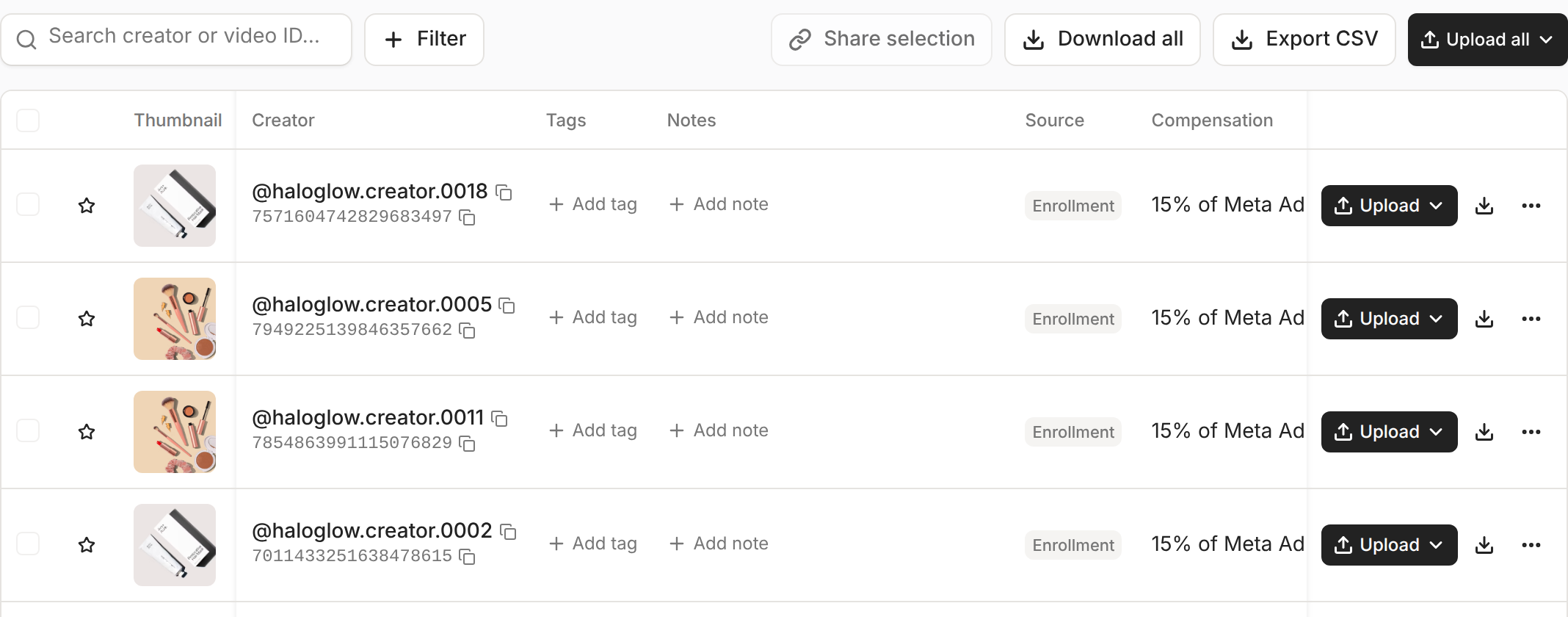
Click Add note in a video's row, write the note, and give it a status if you like. You start with Needs edit, In progress, and Ready to test. Manage statuses lets you rename or delete them or add your own, up to 60 characters each. Deleting a status takes it off every video but keeps the notes.
Every save is kept, so the cell and the video's details show the note's History: who changed it and when. Filter by status to see, for example, every video that still needs an edit. Export CSV includes each video's status and note.
Download files and get originals
Use Download on a row or in its … menu for one file. Select rows for Download selected, or use Download all for every filtered match. Bulk downloads need Chrome or Edge and save to a folder you choose. Keep the tab open; files that are not ready are skipped, and Retry failed retries failures. Single downloads work in any browser.
Download uses the synced TikTok copy when one exists. Otherwise, it uses the creator's uploaded file. Creator Upload > Yes confirms a completed upload; it does not mean that file will replace an available TikTok copy. Message the creator to ask for their original file, which they can upload from the license page in the creator app.
When a TikTok copy is not ready
Download Ready shows Syncing, Ready, or Failed. Temporary failures retry automatically. Use … > Retry TikTok Sync to retry now. If TikTok no longer has the video, ask the creator for the original.
Euka takes TikTok's 1080p file when available, otherwise its 720p file. An older license keeps the copy stored at the time, so it may lack a 1080p chip even if TikTok now offers a larger file. No chip can also mean the file has not been measured yet.
For TikTok photo posts, Euka makes a 1080 × 1920 slideshow video from the slides and sound. If the slides cannot be read, the sync retries rather than saving audio alone.
Add your own edits of a video
You can upload your own edited versions of a video you hold rights to and use them in Meta ads under the original's terms. Choose Upload > Add edited version on the original, then add MP4 or MOV files up to 500 MB each. A video can have up to 20 edited versions. They're paid under the original's compensation and end when its license does.
Edited versions show under the original, tagged Edited. You can rename one in place. From an edited version's Upload menu you can send it to Meta like any other video. You can delete an edited version until it has been uploaded to Meta.
Send videos to Meta
Enable Meta Ads and connect an ad account in Settings > Integrations > Meta.
Upload > Upload to media library sends the video to Meta for you to use in Ads Manager.
Upload > Create ad creates an ad in your chosen campaign and ad set. This is available once the TikTok copy is synced.
Upload selected or Upload all handles up to 5,000 items at a time. Upload all uses your current filters. Uploads run in the background and skip videos already in the media library.
A green check on Upload means the video is already in Meta. Ads built from those uploads link back to their licensed video overnight and appear in Performance the next day. Images need their ID in the ad name instead. See Linking ads to creator videos.
Export or share a selection
Export CSV includes up to 100,000 filtered rows with creator and content links, source, terms, products, TikTok figures, Meta results, sync status, and Creator Upload status.
To keep another tool in step with your library, including tags, Meta uploads, and file downloads, use an OpenAPI key.
Select up to 200 videos and use Share selection to copy a link opening those videos in the library.
Add your brand's files
In Brand Assets, choose Upload Content, select an image or video up to 500 MB, add a Name and optional Description, then upload. Images from Brand HQ and creative brief attachments also appear here.
Use Download to save an asset or … > Delete to permanently remove it. Brand assets can be stored and downloaded here but cannot be sent to Meta from this tab.
If something is missing or fails
What you see | Next step |
|---|---|
No licensed content yet | Request usage rights from Content > Videos. |
A video cannot be downloaded | Wait for sync, retry a failed TikTok sync, or ask the creator for their original. |
No ad accounts found | Connect Meta Business in Settings > Integrations > Meta. |
No new videos to upload for the current filters | Matching videos are already uploaded or have no file ready. |
Bulk Meta upload is limited to 5000 licensed-content items | Narrow your filters or selection. |
Meta video uploads are temporarily paused | Try again later; uploads are temporarily paused for everyone. |
TikTok controls whether its copy is available, creators supply their originals, and Meta applies its own ad limits. See Meta Ads for ad creation errors.