Retainers
Last updated: November 23, 2026
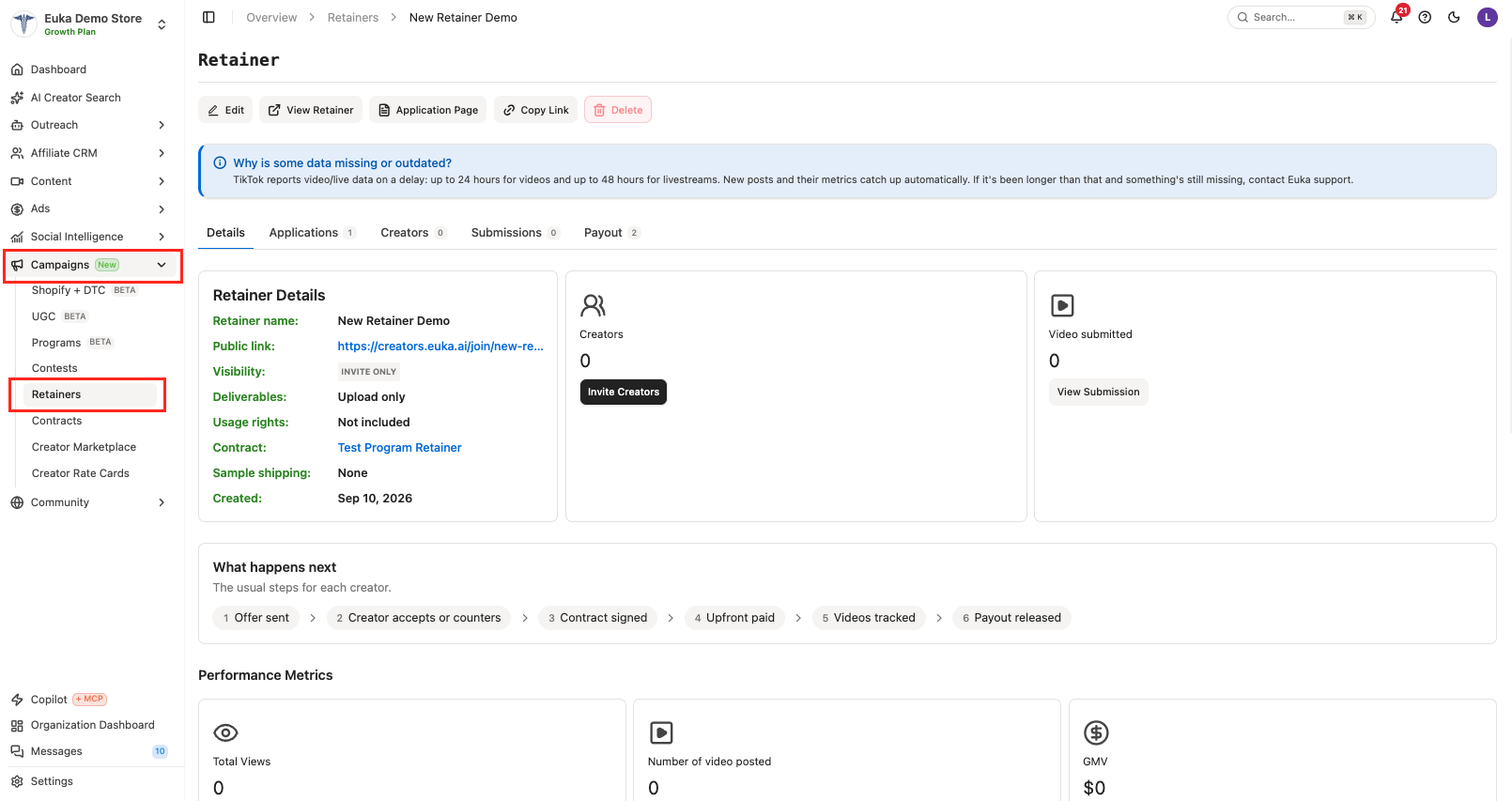
Retainers let you agree on a video package and price with creators, track delivery, and pay them in Euka. Open Campaigns > Retainers to manage them or click New Retainer.
Retainers require Growth, Business, or Autopilot. The setup available to your brand can differ:
If you see Retainer type, with One-time and Ongoing, use the package workflow below.
If you see First Period during setup and a Periods tab afterward, use the period-based workflow at the end of this article. Existing retainers keep that workflow.
You don't need a TikTok Shop to run a package retainer. With a connected Shop, posted videos can count by product or by hashtag; without one, they count by hashtag. Upload only packages don't need TikTok at all. See Connect your TikTok Shop.
Set up a package retainer
The four setup Steps cover the offer, creators, presentation, and final review. You can create a retainer before choosing creators and invite them afterward.
A retainer you create with Copilot or a connected AI tool starts as a draft. It shows Draft in the Retainers list, and its page says "This retainer is a draft". Creators can't join until you review its terms and click Activate, on its page or beside Draft in the list.
General: agree on the work and pay
To pay creators in product only, enter $0 as the Default price per package under Default offer. With creator app sampling, every creator receives a product sample, and there's no currency, budget, upfront payment or installments to set. Creators see “Product sample” as their compensation. Pair it with a sample method under Include samples so creators get the product. Enter any other price to make it paid again. A retainer stays creator app sampling, or paid, once it's created.
Choose the type first. It cannot change after creation.
Type | How it works |
|---|---|
One-time | One package at an agreed price, with start and end dates. |
Ongoing | Repeated payments as creators earn installments. It has a start date and an optional end date; see ongoing retainers below. |
Under Currency, choose USD or GBP for the whole retainer, for example to pay UK creators in pounds. Prices, bonuses, and bills are in that currency, and creators are paid and withdraw in it. A GBP retainer is paid by card only, not from Euka Balance or a US bank account. The currency can't change once a creator has joined. Creator app sampling offers and retainers paid as a guarantee are always in US dollars, so they don't show the setting.
Choose Invite Only to invite selected creators or Open Application to accept applicants through the creator app and a shareable link. You decide which applicants join.
Two switches under Creator Selection set how invitations work:
Require creators to apply is off by default, so an invited creator who accepts your offer starts right away. Turn it on and invited creators apply or counter instead, and the retainer starts only when you approve. Their row shows Applied, with Approve, counter, and decline in the negotiation panel. Once you approve, Euka tells the creator in the creator app, by push notification, and by TikTok DM.
Send invitation messages is on by default: Euka sends each invitation by email, TikTok DM, and the Euka app, with reminders on day 2 and day 4. Turn it off to send nothing, and share the retainer link yourself. Pending invitations then show Copy link instead of Re-invite.
Both kinds have one optional Default offer under Creator defaults: Videos per package (optional), Default price per package ($, optional), minimum GMV, Daily limit (optional) and GMV bonus. Each prefills every invite you send and every applicant you approve, and you can change any of it for one creator. A price needs a video count. The retainers list shows Priced per creator when you haven't set a price.
On an Open Application retainer, a filled price is also the pay applicants see, and Lowest price you'll approve optionally shows the bottom of the range; you can't approve an applicant below it. Leave the price blank and applicants see "Set by" your brand "after review" instead of a number. Either way, every applicant to a paid retainer proposes how many videos they'd make and their price, and both are required. Send offer opens the same offer card as an invite, prefilled with the applicant's videos and price and the rest of your Default offer; the creator can accept or counter. On Invite Only, a default price can be changed but not removed once set; on Open Application you can clear it to stop showing pay. With creator app sampling, creators receive a product sample and apply without a cash proposal, and you can approve applicants in bulk. On paid retainers, applicants are approved one at a time.
On either kind, Cap total creator spend under Budget limits the one-time retainer's overall budget and must cover all offers included at creation.
Choose the deliverable:
Post to TikTok: creators post within the tracking window, with no upload step. Which posts count depends on how videos are tracked, below.
Review, then post: creators upload drafts for approval, then use Send to TikTok in Euka to finish posting through TikTok. Only posts tied to those approved drafts count, one per draft.
Upload only: creators submit files for approval. Nothing needs to be posted; approved uploads count toward delivery.
For posted videos, How videos are tracked decides what counts:
Track by product: a video counts once TikTok Shop attributes it to your Shop, or to the products you pick.
Track by hashtag: a creator's own TikTok post counts when its caption has any of your Hashtags, shoppable or not. Add up to 5 hashtags, and optionally up to 5 Required @mentions that every counted post must also include. On Review, then post, the video published from your approved draft counts.
Without a connected TikTok Shop, videos are always tracked by hashtag and product choices are hidden. The deliverable and tracking rule are set when you create the retainer and can't be changed afterward.
Usage rights included gives you permission to use the videos that count toward the package in your ads and marketing. Creators keep ownership of their videos. Under License length, pick No end date, or Set number of months and enter the months. The license starts once the creator delivers and you pay, or when you end an installment retainer, and a set length is counted from then. Creators see the grant and its length before applying, countering, or accepting. With No usage rights, request permission separately later through Usage Rights.
Set the notification contact, tracked products, dates, payment schedule, and optional contract. These are defaults you can adjust per creator. When tracking by product, leaving products empty tracks every video for your Shop. The product list shows your best sellers first and loads more as you scroll. To add many products at once, paste two or more TikTok Shop product IDs or product links into the search; products from another shop are named and left out.
For one-time packages, choose Pay when delivered to pay the whole package once it's delivered, or Pay per installment to pay part of the price every few counted videos.
With Pay when delivered, choose whether Euka holds an upfront share. A new retainer starts on Pay after delivery:
Pay after delivery: no advance hold; pay once delivery is complete.
Held by Euka until delivery: pay the upfront share after acceptance and any required signing. Euka holds it until delivery. Held upfront (% of package price) starts at 100%.
With Pay per installment, choose how to split the price:
Every few videos: set Videos per installment. With a 30-video package at $999 and 10 videos per installment, you pay $333 at 10, 20, and 30 videos. The last installment covers whatever is left.
Custom %: choose the Number of installments (2 to 10) and the whole percent of the price each one pays; they must add up to 100%. Each percent is paid once that same percent of the videos is posted, rounded up to a whole video. With a 10-video package at $100 split 30% / 30% / 40%, you pay $30 at 3 videos, $30 at 6, and $40 at 10. On a 15-video package the same split pays at 5, 9, and 15 videos. Each creator's installments follow their own video count and price, and two installments that land on the same video are paid together.
You pay each one from Payout once it's earned, and Euka holds nothing in advance. To stop a creator early, use Confirm delivery after an earned installment: tracking ends and nothing more is charged. Pay per installment can't be combined with an upfront share or Upload only, and the split is set when you create the retainer and can't be changed afterward.
Minimum GMV to get paid ($, optional) lets you pay a one-time package only if it sells. A creator is paid once the videos they post for this retainer reach that much sales (GMV) in your TikTok Shop by their due date. When the retainer tracks specific products, only sales of those products count, even if a video also tags other products. Sales after that don't count. It sits next to the default price, every invite starts with it, and you can change it per creator under Min GMV ($) before the invite goes out. Creators see it before they accept, and it can't change after they do. It's offered on one-time retainers tracked by product on a TikTok Shop that sells in US dollars, and not with Pay per installment.
GMV bonus ($, optional), under the minimum, pays more when a creator's videos sell more. Use Add tier to add up to 5 tiers, each with a GMV goal (When GMV reaches ($)) and a Bonus ($) in whole dollars. Each tier needs more GMV and a bigger bonus than the one before it. GMV counts sales of the retainer's products, the same ones the minimum counts, on the days from the creator's start to their due date. After the due date, the creator gets the bonus of the highest tier reached, added to the package price and paid with it. Tiers don't add up. Every invite starts with the retainer's tiers, and you can change them for one creator on their card under GMV bonus before the invite goes out, including the Invite Creators dialog on a live retainer. Clearing every tier gives that creator no bonus. Creators see their tiers before they apply or accept, and your budget sets aside each creator's top bonus. A retainer with an upfront share held by Euka can't take bonus tiers.
Daily limit (optional) counts at most that many of a creator's videos posted on one UTC day, earliest first. Later videos that day still show on the creator's list, marked as not counted. It works on any retainer that posts to TikTok (not Upload only), sits next to the videos and price, and is set when you create the retainer.
Upfront funds come from Euka Balance. Check the balance and use Add funds before sending offers that need a hold. While a held upfront is unpaid, the notification contact gets an email listing every creator waiting and the total, with a Pay upfront link to Payout, followed by reminders 3 and 6 days later. The reminders stop once you pay or record the payment. Contract templates use each creator's agreed video count and price; see Contracts.
Add creators and customize the page
On Creator Search & Pricing, use + Invite Creator, search by handle or email, and set any individual terms. To invite a creator who isn't on TikTok or isn't in your creators yet, type their email and pick the invite-by-email result: Euka emails them an invitation to sign up and join, and they show as Invited by email. The same search works when you invite creators to an existing retainer. You can skip this Step and invite later.
On Customization, set a recognizable name, description, and qualifications. Optional additions include:
A Custom Link, the address creators open to see the retainer: creators.euka.ai/retainers/ followed by your ending. While you create the retainer, it follows the name. Use lowercase letters, numbers, and hyphens, with at least 3 characters and one letter. Leave it blank to keep the link Euka makes.
A 16:9 banner, recommended 1680 × 945, up to 20 MB.
A published creative brief.
Discord requirements, roles, a retainer channel, or a brief DM, using the server you connect in Discord.
Up to 10 disqualification rules, 200 characters each, from presets or your own wording. Package retainers apply these manually.
Require shipping address & phone number when you need those details before acceptance.
If Discord is available for your account, turn on Retainer channel and choose Shared channel or Channel per creator. A private channel is created after the creator accepts and receives any required approval, while the collaboration is active. The creator, server admins, and the team roles you select have access. Only select team roles that are never assigned to creators.
Choose an existing Discord category or enter a name to create one before saving. The category cannot be changed in Euka afterward; move channels manually in Discord if needed. Each category holds up to 50 channels. Euka creates another category when needed, adding a number to its name. Changes to team roles update access to channels for active collaborations in the background. They do not restore creator access you removed manually or change channel topics.
Edit the Welcome message to introduce the channel. Use {creator} to mention the creator and {brand} for your brand name, or turn off Welcome message to skip it. Turning it back on before saving restores your text. An empty message uses the default welcome. If you turn it off and save, turning it on in a later edit starts with the default welcome. It is sent once, using your brand name and logo. Euka Bot needs Manage Webhooks and Send Messages permissions for this; if webhook permission is missing, the message comes from Euka Bot instead.
When you choose Channel per creator, Euka turns on Require Discord to accept this retainer and locks it. Switching back to Shared channel unlocks the setting. Creators who already accepted without connecting Discord keep their accepted status, but cannot have a channel until they connect. The Discord column on the creator list shows their status, links to ready channels, and offers Retry when creation fails.
When you change Discord settings and save, Euka checks for approved creators who have accepted and are already in your Discord server without a channel. Review the count and server space, then choose Save and create, or Save without creating to save your edits and create the channels later. You can still save when the server has no space for more channels. Channels are created in the background; View progress shows the result. Backfill creates the channel and sends its configured welcome. Automatic roles and brief DMs run when the creator joins through Euka. Once Discord setup has succeeded, edits that leave its settings unchanged save without contacting Discord. If setup failed or never finished, saving again retries it after saving your edits. You can use Create or retry channels on the retainer page at any time. Creators who have not connected Discord or have left the server are skipped.
Discord allows 500 channels per server, including categories. Euka warns you when the server is nearly full and stops new channel creation when there is no room. Free space in Discord, then retry. Channels remain after a collaboration ends; Euka only recreates a deleted channel for an active collaboration.
Switching between Shared channel and Channel per creator does not delete existing channels or remove anyone from a shared channel. Review the old channel's permissions in Discord if those creators should no longer have access.
Disqualification rules are fixed at creation, including a decision to use none. Create a new retainer if they need to change.
On Review and Create, check the tracking window, products, deliverable, sample arrangements, payment schedule, rights, contract, price, budget, and contact. Use each section's Edit link to correct it, then click Create Retainer.
Invite, share, and negotiate
Copy Link and View Retainer open the page creators see. An Open Application page can be read before sign-in; applying requires an account. Invite Only pages require sign-in and a valid invitation. Earlier application links still work.
When a creator applies from the Euka creator app, Euka refuses them if their TikTok Shop is in a region none of your brand's TikTok Shops sells in, such as a UK creator for a brand with only a US Shop. A creator whose region Euka doesn't know isn't blocked. Invitations and your approvals aren't checked, so check a creator's region before you invite or approve them.
A creator can link more than one TikTok account to Euka. When your retainer tracks by product, has creators post with Send to TikTok, or sends a TikTok Shop sample, a creator with several linked accounts picks one when they apply. Only that account's videos count for them, and the account is set once they join.
Creators accept the package or counter it in Euka. You can accept, counter, or discuss it in Euka Chat. A counter, from you or the creator, can change the price and also the number of Videos, for example fewer videos at a price closer to the creator's rate. The form shows the price per video, and a creator can't ask for less per video than your latest offer. The terms are agreed only when both sides accept.
The collaboration then follows any contract and sample steps, content delivery, and payment. Track it in Details, Creators, Submissions, and Payout.
Work through creators who need you
Creators opens as a workspace that puts the creators waiting on you first. The switch at the right of the tabs moves between Workspace and Table, and Euka remembers your choice in this browser.
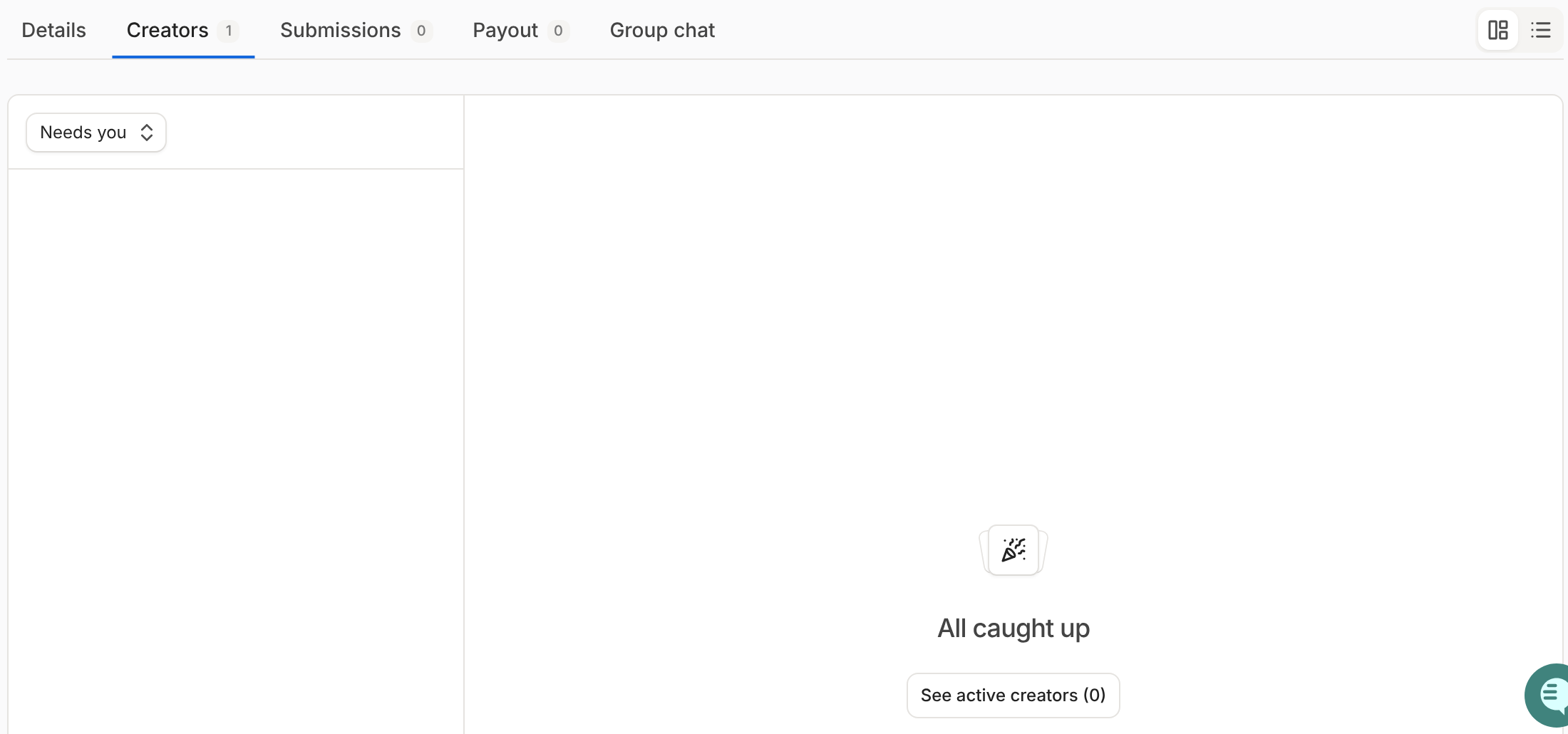
The list, on the left. Needs you shows the creators whose next step is yours, such as an application, a counteroffer, a sample to ship, a draft to review, or a payment, with whoever has waited longest first. Each row shows the creator's handle, or their email when they have none. Switch the list to Pending, Negotiating, Active, Completed, or Terminated to see the others. When nobody needs you, it says All caught up, with See active creators.
The open creator, on the right. Their steps run across the top, and the step they're on opens below it, so you can act without leaving the page:
Pending: the application or invitation and when it came in, with Send offer or Reject for an application, and Re-invite or Cancel invitation for an invitation.
Offer: what the creator's counter changes and the earlier rounds, then Your reply: Accept, Counter, or Decline with an optional reason. Declining ends the negotiation and tells the creator. While the next move is theirs, you can only Revise offer.
Contract and Samples: the same contract and sample actions as on their collaboration.
Posts: their waiting drafts one after another (Draft 1 of 3), reviewed the same way as in Drafts. With no draft waiting, their videos, window, installments, guarantee, and the controls to end their retainer.
Payment: what they delivered, and the amount, method, and Pay, or the installments of a retainer paid per installment.
Any other step has Open panel in the More actions menu, which opens the collaboration panel as before. Completed and terminated creators show their steps without actions.
A retainer with one creator opens straight on that creator. Clicking a row on Payout opens that creator in the workspace too. A note you've started on a draft is saved before you move to another creator, filter, tab, or view.
Table lists everyone in the retainer, sorted by where they stand: Pending (invitations and applications waiting for a reply, under Invited and Applied), Negotiating, Active, Completed, Declined, and Terminated. Declined lists applications you rejected and invitations creators declined. It opens on Active when anyone is active. It has the same Filter and TikTok sample columns as a program's Collaborations tab, described in Shopify + DTC programs. Each tracked video shows its TikTok video ID under the caption, so you can search the page for it.

In Table, on Pending > Applied, sort applicants by Asking, the price they asked for, or by their TikTok Shop sales (GMV) over the last 30 days, and narrow them with the same Filter as Creators. Sorting and filters cover every applicant, not only the page on screen.
To take your retainer's results elsewhere, click Export Data and choose Submissions. The CSV has one row per tracked video: the creator, video ID and link, posted time, views and other stats, sales, product, whether it counted, and any disqualification reason.
Include samples
On General, turn on samples and choose how they're sent:
TikTok Target Invite: Euka sends a free-sample invitation and tracks the request. Set Affiliate commission (%) from 1% to 80%, with up to two decimals; the default is 10%. Shop Ads commission (%) is optional, also 1% to 80%, and applies to orders from ads that use the creator's video. Leave it blank to use your open collaboration Shop Ads rate, or the affiliate commission if you have none. Auto-approve sample requests starts on. Turn it off to review in Seller Center before shipping.
Share a sample link: provide a TAP or target-invitation link. Creators get a request button, but Euka does not track the external process.
Ship it yourself: creators add a shipping address and pick from TikTok Shop products you choose. You approve each request, ship it any way you like, and add the tracking number. This option appears when you have a TikTok Shop connected, and it works on Upload only retainers too.
Ship from your Shopify store: each creator gets a free order from your Shopify store before posting. Pick the Shopify store and Products to send, or turn on Let creators choose and set Items per creator. Creators add a shipping address and phone number before they accept. This option appears when you have a Shopify store connected.
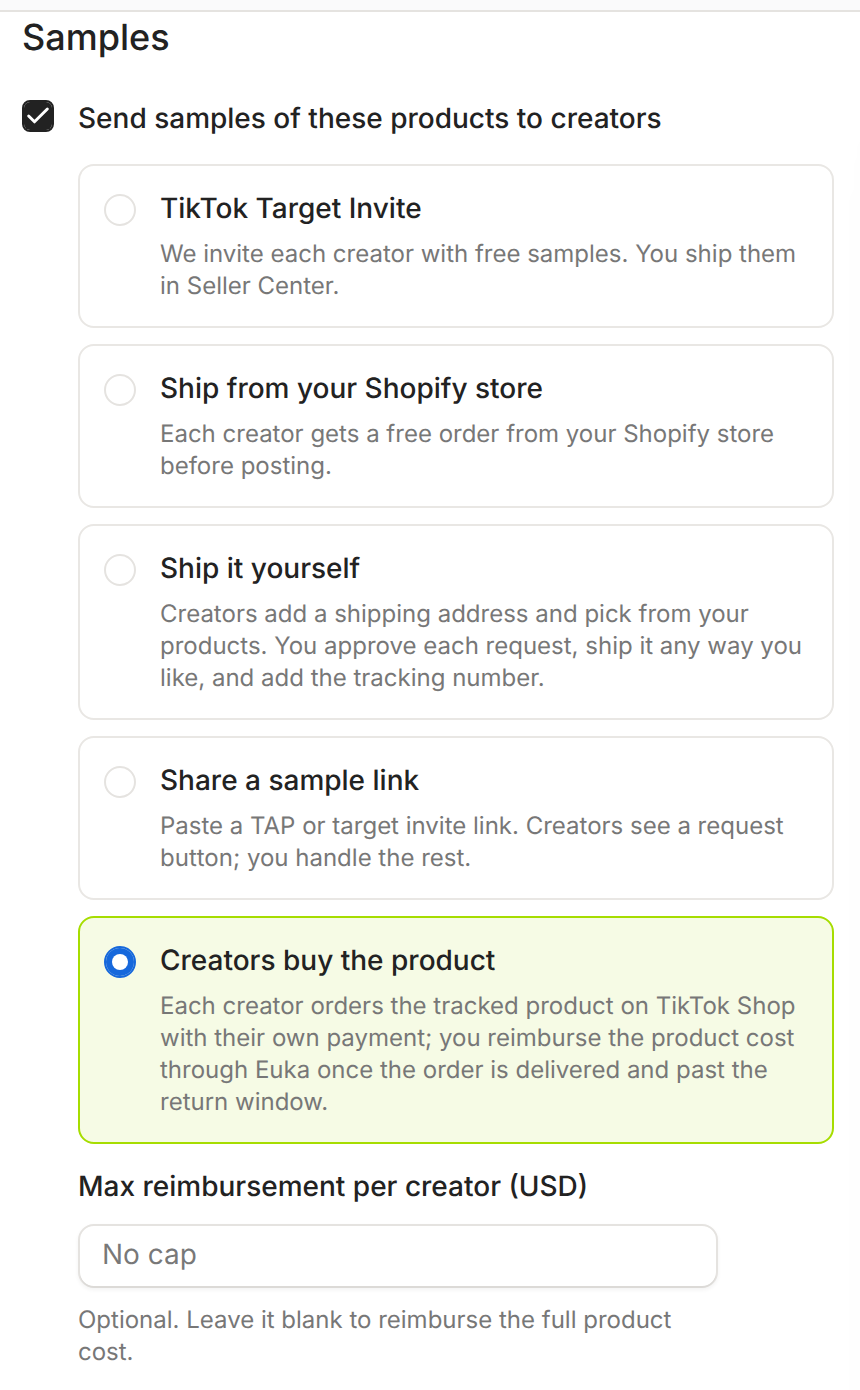
Creators buy the product: each creator orders the product on TikTok Shop with their own payment, and you pay them back for it through Euka once the order is delivered and past its return window. See Creators buy the product below.
TikTok Target Invite and Creators buy the product need a TikTok Shop and tracking by product, and they use the products you pick in Tracked products. Upload only retainers can't use either, because their creators don't need TikTok connected. Every method except a sample link can only be turned on or off when you create the retainer, and its products can't change afterward.
With TikTok Target Invite, the Sample step shows order creation, shipping, and delivery as TikTok reports them. Ship through Seller Center. With manual approval, waiting requests appear under Awaiting Brand Approval. Either side can Skip sample if one is unnecessary.
Creators due on the same day share one TikTok invitation, up to 50 creators each, which keeps a busy Shop within TikTok's daily limit on new target invitations. Each creator's sample window stays the same.
If TikTok won't accept one of the products in a sample invite, Euka sends the invite without it and the step names the product: "Invite sent without …". If TikTok refuses every product, fix them in TikTok Seller Center, then retry. If sending fails for another reason, the step explains the cause and offers Retry invite. Check the creator's TikTok account, your Shop authorization, the notification email, and overlapping invitations for those products. A canceled sample request can progress again when the creator makes a fresh request.
With TikTok Target Invite, Euka doesn't message creators on TikTok. They get Open the invite in TikTok on their sample step in Euka, which opens your invite directly so they can request the sample.
With Ship it yourself, pick the products under Products creators can pick from. Let creators choose starts on: set Products per creator, from 1 to 10 and no more than the products you offer. Turn it off to send every creator all the products under Products to send. Creators add a shipping address and phone number before they accept. When a creator picks, the collaboration shows Approve request. Answer within 14 days: after that the request expires, and the creator is told and can pick again. Approve it, ship the product however you like, then click Mark as shipped and enter the tracking number. The creator sees the tracking number and confirms delivery, and then the videos begin. While a sample waits on you or is on its way, the creator's sample step shows Ship to with their name, address, email, and phone number, each with its own copy button. Copy address copies the address on one line, without the name. If a creator has no address yet, add it on their full profile.
With Ship from your Shopify store, you send each sample from the creator's Sample fulfillment step instead of Seller Center. Click Create order to place a free order in your Shopify store, check the products under Samples to send first if the creator picked them, then ship it. A creator's pick that waits 14 days without an order expires, and the creator is told and picks again. After it has shipped, click Fulfill order, add an optional tracking number, carrier, and tracking URL, and confirm Mark fulfilled in Shopify. Orders you fulfill in Shopify itself update in Euka automatically. A creator without a shipping address needs one on their profile before you can create the order.
Once the whole order has shipped, Euka completes the sample step when every shipment is delivered. A shipment with no carrier status is treated as delivered after 30 days from shipping, checked daily. A shipment still in transit or with a delivery exception keeps the step open. You can also confirm receipt with Mark delivered.
Creators buy the product
Choose Creators buy the product when you'd rather have creators order the product themselves than ship them a free sample. Each creator buys it on TikTok Shop with their own payment, and you pay back the product cost through Euka once the order is delivered and past its return window. Creators see this on the offer, with your maximum if you set one, before they accept.
To set it up, pick the products creators buy in Tracked products. Max reimbursement per creator (USD) is optional: leave it blank to reimburse the full product cost. Reimbursements are paid in US dollars, so the retainer's Currency must be USD.
After accepting, the creator's Purchase step links to the product on TikTok Shop. They order it, without using their own affiliate link, and paste the order number into Euka. Euka checks the order in your Shop straight away. It counts when it:
was placed by the TikTok account the creator joined the retainer with;
includes one of the retainer's products;
is paid and not cancelled;
isn't a sample, replacement, or exchange order;
is in US dollars;
was placed no more than 30 days before the creator's start date;
hasn't been submitted before.
If the order doesn't count, the creator sees why and can submit another. Once it's verified, the step completes and the creator moves on to their videos; they don't wait for delivery. A creator who already has the product can skip the purchase, and you can click Skip purchase on their step. Either way, nothing is reimbursed.
The Purchase step on the creator's collaboration shows the order number and its progress: Awaiting purchase, Delivered, Eligible, and Reimbursed. A refused order shows Order not verified with the reason.
The reimbursement is the sale price of the retainer's products in that order, up to your maximum. Other products, free gifts, cancelled items, and shipping aren't included. It's ready to pay when TikTok marks the order completed, or 30 days after delivery, whichever comes first, and Euka emails you when it is. If the order is cancelled, nothing is reimbursed.
On Payout, each reimbursement is its own Product cost reimbursement row, with the order number and a Pay button. Paying by card adds a 5% fee (at least $1); a US bank account or your Euka Balance adds nothing. You can also put it on an invoice with Generate Invoice, or record a payment you made yourself with Pay outside Euka > Mark as paid, which adds no fee. Auto charge doesn't pay reimbursements. Once paid through Euka, the money goes to the creator's Euka balance to withdraw.
Review delivery before payment
In the Creators workspace, a creator on the Posts step opens straight on their drafts and posts. In Table, each creator's row has a button that opens them: Review Content while drafts wait for you, otherwise Posts, or Videos on Upload only retainers. To give one creator more time, for example so a post just outside their window still counts, choose Extend window in their row menu in Table, move the Start date earlier or the Due date later, and click Save. The Start date and Due date can only move to give more time, never less. On an ongoing retainer, a creator with no end date can be given one under End date (optional), as long as it isn't in the past. On other retainers, a creator with no due date can only have the start moved, for example one who joined after the retainer's end date. Other creators keep their dates. It's available while the creator is in tracking.
On a weekly or monthly retainer, expanding a creator's row lists their videos by week or month, newest first. Each period shows how many videos counted out of those required and whether it was earned, with the amount. The current period opens on its own, and a long period shows its first 10 videos until Show all. A week or month with no posts shows as empty and not earned.
Submissions > Posted collects counted videos, usually within an hour after TikTok attributes them to your Shop. Review-based retainers also have Drafts.
Drafts puts the list of drafts, the open draft's video, and its notes side by side. Filter the list by Awaiting review, Needs change, Approved, or All. Start typing a note while the video plays: the video pauses and the note is pinned to that moment, or choose Make it a general note. Then click Approve or Request revision. A revision request needs a note or a short summary for the creator, and your notes are sent with it. The next draft opens in its place. If a teammate decided the draft before you, it shows Already decided and your decision isn't sent.
On a Review, then post retainer, the creator posts an approved draft with Send to TikTok; other posts show Not counted. If a creator posted an approved draft straight on TikTok instead, click Link to draft beside the video, pick the draft under Approved drafts without a post, and click Link post. The video then counts for that draft and shows Linked to with the draft's name. Unlink undoes it.
When your retainer includes usage rights, Download videos on Submissions saves the videos of each completed and paid package as one zip file. A package is complete once you approve its content or confirm delivery, and its videos download once you've paid for it. A video that already had a live license stays downloadable. After your first download, the button saves only the videos you haven't downloaded yet, with Download all videos in the ⋮ menu. You can also tick videos and click Download selected. The Downloaded column shows when you downloaded each one, New, or Unavailable when TikTok didn't return it.
If your retainer includes an upfront payment, each creator's video tracking starts after that payment settles. Submissions shows how many creators are waiting for payment or settlement. When an upfront payment is still unpaid, choose Review upfront payments to open Payout and see which creators need payment. If a payment is processing, wait for settlement. You don't need to pay again. Creators see the waiting status on their own Submissions page too.
To change which products count for one creator after they accept, choose Edit tracked products from the ⋮ menu on their row or in their details. Only videos tagged with the new products count toward their package, including videos they already posted, and other creators keep theirs. Leaving the list empty counts every video from your Shop. Products must be from your connected TikTok Shop. You can't change them once tracking has ended or delivery is confirmed, or on a retainer that doesn't track by product. If the recount doesn't run straight away, the creator's progress can show the old count until the next hourly check.
Use Disqualify beside a posted video's status to remove it from the count. Select one or two reasons, adding text for Other. Undo restores it. These actions are also available within a creator's row, but not after delivery is complete.
Once a posted-video package reaches its target, a three-day review window starts. The notification contact gets an email at the start and again 24 hours before the deadline, shown in US Pacific time. Review or disqualify videos before it closes. Disqualifying below the target stops the clock; reaching the target again starts a new three-day window.
When the window ends, the creator moves to payment. Held upfront funds are released automatically; any remaining payment is handled on Payout. During review, the payout shows Not ready unless you confirm delivery early.
On a retainer with a minimum GMV, a creator who has posted every video shows Waiting on GMV with "GMV: $x of $y minimum" until sales reach it. If the due date passes short of the minimum, the creator shows GMV below minimum and nothing is paid or canceled automatically: use Confirm delivery in the row menu to pay anyway, or Terminate to end without paying. Extending the window lets new sales count again.
On a retainer with GMV bonus tiers, each creator's row shows the tier they're on and how much more GMV reaches the next one, such as "GMV bonus: on Tier 1 (+$50) · $400 to Tier 2 (+$100)". TikTok Shop's sales data can take up to three days after the due date to come in, so Confirm delivery waits until the GMV through the due date is in. Payout then shows the bonus reached, included in the amount.
Upload only has no separate review window. On a one-time retainer, the approval that completes the package moves directly to payment and triggers a payment-due email.
Confirm delivery early
Use Confirm delivery on a creator's row menu or under Manage to end tracking and accept the work as it is, even below target. The dialog shows delivered or approved counts, pending uploads, and the consequences. Accepting a shortfall still pays the agreed package price. Pending drafts remain unapproved, and held upfront funds are released.
Only TikTok posts already picked up by Euka can enter the final count. The Confirm delivery beside an active review-window notice confirms immediately, without that dialog. It works for one creator at a time.
Retainer creators do not have Mark Complete or Move to Stage. Use Confirm delivery to proceed to payment, or Terminate to end the collaboration. You can still use Skip this step for a step before tracking that a creator doesn't need, such as a contract or sample; it works as described in Shopify + DTC programs. The tracking, offer, and payment steps can't be skipped.
Pay a package or record direct payment
On Payout, select payable upfront or balance rows and choose Pay Creators. The same button handles both kinds of payment. A product cost reimbursement has its own Pay; see Creators buy the product. Paying by card adds a 5% fee (at least $1) to the creator's charge; a US bank account or your Euka Balance adds nothing. Click a row to open the creator's details if you need to review a custom amount. Held upfront funds retain their Release action. Once you've paid at least once, View Invoices beside Payout History opens Settings > Brand > Billing > Invoices, where you can view and download your invoices.
Generate Invoice puts several creators' payments on one Stripe invoice, for example when your finance team pays by invoice. Select their payable rows and choose Generate Invoice, then pick how the invoice is paid: Card adds a 5% fee (at least $1 per creator), and US bank account adds no fee and settles in about 4 business days after you pay. Customize invoice address changes the company, contact name, billing email, and address on the invoice. Under Payment terms, choose Due in 15 days, the default, or Due in 30 days. Invoice fields prints up to 4 extra lines on the invoice, each a name and a value, such as a project or PO number. Click Generate invoice, and once it's ready, open it to pay on Stripe's invoice page. One invoice covers up to 200 payments. Each payment shows Invoice sent until the invoice is paid, then the creators can withdraw. To pay another way, choose Cancel invoice: Stripe voids it, and each of its payments goes back to unpaid.
If you have already paid creators directly, select their payable rows and choose Pay outside Euka > Mark as paid. This records each payout at the agreed amount, charges nothing, adds no fee, and emails the creator. It cannot be undone. An upfront payment recorded this way is not held by Euka, and no money is added to the creator's Euka balance.
Earned installments on ongoing retainers do not support Pay outside Euka; use their individual Pay button.
Auto charge
A retainer offered to Ads Program creators in Meta Ads is always paid by Auto charge: the offer shows it switched on and it cannot be turned off there. Choose a saved card or bank account in the offer; you can't send it without one. To save one first, go to Settings > Billing > Payment methods. Euka then charges that method itself:
A one-time retainer is charged when its payment comes due: once the creator meets the target and the review window ends, or as soon as you confirm delivery.
A monthly retainer charges each earned month after the same review window, 3 days by default.
Euka charges the creator's pay. Paying by card adds a 5% fee (at least $1) to the same charge; a US bank account or your Euka Balance adds nothing. A bank payment takes about 4 business days to settle. If the creator's charge fails, including a bank payment that fails while settling, Euka emails you. A one-time payment is retried once, the next day, unless the decline is one a retry cannot fix, such as a lost or stolen card. A monthly installment is retried at the next daily runs. A failed charge never pauses the retainer, and you can still pay from Payout yourself. An installment still unpaid when you terminate a creator is not charged automatically; you can pay it from Payout.
Payout shows the method auto charge uses. An Ads Program retainer's auto charge can't be turned off, but you can still pay a creator yourself from Payout, for example after a failed charge.
Ongoing retainers and installments
Choose Ongoing to pay repeatedly without committing to a fixed number of months. Under Pay per, choose how an installment is earned, then set the videos it needs (Videos per installment, Videos per week, or Videos per month) and Default price per installment ($):
N videos: a 10-video package earns installments at 10 counted videos, 20, and so on.
Week: a UTC week, Monday to Sunday, earns an installment only if it contains the full required package. A short week earns nothing, and extra videos don't carry into the next week, so creators have to space their posts out.
Month: a UTC calendar month earns an installment only if it contains the full required package. Short months earn nothing and do not carry videos forward.
All three deliverables work. On Upload only, installments count the uploads you approve, and an approval is final. A weekly or monthly retainer counts an approved upload in the week or month its approved file was uploaded, even if you approve it later.
End date (optional) lets an ongoing retainer stop on its own. Posts after that date don't count, and the retainer ends by itself once the review window after it closes, just as if you had chosen End after this installment. Earned installments stay payable, and included usage rights cover the earned-installment videos. Leave it blank to keep the retainer running until you end it. The end date you set for the retainer applies to every creator without their own, so changing it on a running retainer changes when those creators end. A creator who joins after the end date ends right away.
Ongoing retainers have no upfront hold or total spend cap. Selecting Ongoing clears those settings. Creators see the rate, installment rule, end date if any, and progress before and after accepting.
Each earned installment appears on the creator's collaboration and Payout. Click Pay, choose a payment method, and review the total. Paying by card adds a 5% fee (at least $1) to the installment's charge; a US bank account or your Euka Balance adds nothing. Installments are paid individually, without bulk selection. Processing means a bank payment is settling. Charge failed > Retry retries the same bill.
The collaboration's Payment stage shows Paid per installment and charges nothing itself. Tracking continues until the end date, if there is one, or until you end the creator's retainer. The creator's tracking panel shows Ends with the date.
End after this installment stops tracking after the last earned installment and cannot be undone. Unpaid earned installments remain payable; videos beyond the last earned installment are not paid or licensed. Included usage rights cover earned-installment videos. A later disqualification can make a paid installment no longer earned; it remains listed with that warning.
Pay as a guarantee
On an Invite Only retainer tracked by product, on a TikTok Shop that sells in US dollars, Pay per: Month also offers Pay as: Fixed price | Guarantee. With Guarantee, the price becomes a Monthly guarantee: the TikTok Shop commission a creator earns from orders placed that UTC month on that month's counted videos counts toward it, and you pay only the rest (the top-up).
Only that month's counted retainer videos count. LIVE, showcase sales, older videos, disqualified videos and videos past the daily limit don't, and a video's orders after the month ends don't.
A month earns its guarantee only with all its videos. A month that falls short costs nothing, and the creator keeps their commission.
The top-up is fixed at 00:00 UTC on the 15th of the next month, using settled commission where TikTok has settled it and its estimate otherwise. Returns after that don't change it. If the commission covers the guarantee, there's nothing to pay.
On the creator's collaboration, the tracking panel shows this month's commission so far, the top-up if they finish, and whether they're on pace or out of reach. Each ended month shows Settles (until the 15th), Awaiting charge, Charged, Covered by commission or Missed videos. Pay a top-up from Payout like any installment; the payment shows the guarantee, less their commission, as what you pay. Creators see the same split, their pace and their daily sales before and after accepting.
End a creator's retainer
Terminate, under Manage or with several creators selected on Creators, ends a creator's retainer. Pick a reason from the list and add a note of up to 280 characters if you like; Other needs a note. Euka emails the creator and tells them in the app, with your reason and note.
Ending a retainer stops tracking, and a payment the creator hasn't received can no longer be made. Euka won't end it while:
The retainer pays in installments (ongoing, or a package split into installments) and the creator has an earned installment you haven't paid. Pay it on Payout first.
The creator is at the payment step and your bank payment there is still processing, which takes about 4 business days.
A retainer paid once, whose creator is at the payment step, can still be ended, but the creator then isn't paid for it; the dialog warns you first. Restart starts an ended creator over from the first step and clears the reason.
Creators can also leave a running retainer from their app once they've accepted your offer; before that, they decline the offer instead, and you can send a new one. They pick a reason and can add a note. Euka tells the retainer's watchers by email and in the notifications bell at the top of Euka, with the reason and note. Each watcher can turn this off with Creator left in Settings > Notifications.
Leaving stops tracking just as ending does. A fee or installment the creator hasn't received can no longer be paid, including an earned installment you haven't paid yet; a product purchase you verified is still reimbursed on Payout. An upfront Euka is holding until delivery isn't released to a creator who left; contact support@euka.ai to return it to your Euka Balance. Their status shows that they left the program, with their reason and note. Restart isn't offered for a creator who left. If they left by mistake, contact us at support@euka.ai.
Repeat a package retainer
Duplicate copies a retainer into a new setup. Renew on Creators copies it for selected creators, or, with none selected, the same active, completed, and negotiating creators as Duplicate. The original stays unchanged.
Dates move forward by the old window's length, starting after its end or today, whichever is later. Agreed creator prices and individual terms carry over; negotiating creators use the retainer defaults and may need a price before you continue.
Review these exceptions before sending new offers:
Only the first 200 creators load. Invite others after creation.
Creators without linked TikTok accounts are omitted, including on upload-only retainers. Invite them later through Creators > Invite to program.
Fixed upfront amounts do not copy. Without a newly selected upfront percentage, the copied fixed-deposit deal pays after delivery.
Discord settings copy into the new setup. Renew reuses an existing private channel for the same creator and Discord account. Duplicate creates a separate channel for the new collaboration after acceptance and any required approval.
A total budget cap must cover the included offers.
Renew is unavailable when your selected creators include no active or completed collaboration. Review the copied name and terms before creating the new retainer.
Archive a package or ongoing retainer
Choose Archive program in the retainer's actions and confirm. This moves it to the Archived tab on the Retainers page and stops new creators joining. Existing collaborations, tracking, and payments continue under their current terms, and their history is kept.
To bring it back, open it from the Archived tab and choose Unarchive. It returns to the Retainers list and new creators can join again.
Retainers with a Periods tab
This workflow remains available for existing retainers and brands whose setup starts with First Period. It requires a connected, verified TikTok Shop and Growth, Business, or Autopilot.
Create periods and offers
Set the first period's dates and Invite Only or Open Application, then add creators and their Required Videos Per Period and Package Price per Period. Customize the page and review before creation. Required videos must be at least one; package price is at least $1 in whole dollars.
The first period covers all products. On Periods, edit it to choose up to 10 specific products. Add Period creates another period. Edit dates and products there; the general Edit screen does not change the first period dates or creator-selection mode.
Invite by handle from Details or Applications, review open applicants, or use a creator's rate card. Offers remain under Offered until accepted or declined and can be edited or withdrawn. Notifications go by TikTok DM, available email, and enabled push unless you disable Send notification to creators.
To withdraw several pending offers, select them on Applications > Offered, choose Withdraw … offers, and confirm. Up to 5,000 can be withdrawn at once. Their offers are deleted and the creators return to Applied; this cannot be undone. Creators who accepted or declined any period are skipped. The result explains skipped offers, and a failed request keeps the selection for retry.
An optional contract is sent when the creator accepts. Periods start on acceptance without waiting for signing. Check signing progress in the Contract column.
Count work and pay
A valid video is posted within the period, is not disqualified, and tags a selected product when the period limits products. Dates include the full start and end days in US Pacific time. Add grace period can extend a creator's unpaid period.
Pay is proportional: package price ÷ required videos × valid videos, capped at the package price. A $500 package for five videos earns $300 for three valid videos. Extra videos add no pay.
Payout is manual. In Periods, choose Pay Creators, select creators, and Add to Cart. The cart suggests earned pay minus prior payments; custom amounts can be up to $10,000 per creator. Open Payout > Pay Out Creators and choose Pay via Euka or Pay Outside Euka. A creator must link their Euka account to receive payment.
A period can be paid again after the previous payment settles. A payment already in the cart or processing blocks another. See Paying creators for fees, methods, and overdue-payment restrictions.
Stop a creator's periods
Archive only hides a creator; their periods keep running. To stop tracking, open Applications > Accepted or Archived, choose Remove from retainer, and review the dialog before Remove.
Only running or upcoming periods with no counted videos and no payment can be removed. Pending offers are also removed. Periods with videos, a payment already started, or past dates remain, with the reason shown. If appropriate, disqualify videos before trying removal again. Posts not yet synced at removal will not count.
The creator is not messaged, but removed work shows Ended by the brand in their app. Kept periods and their fees remain. To bring a fully removed creator back, send a New Offer from Archived; there is no Unarchive action for that case.
A period can be deleted only with no creators, and a retainer only with none assigned. Adding a period reactivates a Completed retainer. Contest Exclusivity, when enabled, prevents creators with accepted periods from joining overlapping contests and removes existing overlapping contest entries. Period-based retainers can use the contest disqualification presets, including automatic rules; see Contests.
If the app blocks a new retainer because creator payouts are overdue, pay those outstanding retainer payouts first. For delayed video counts, remember that TikTok reporting can lag; see Why numbers differ.